Software Update
Dreamie keeps itself up to date automatically, but you can always check which version you're running, read what changed in the latest release, and start a pending update by hand. This guide covers the Software Update screen and the update flow.
Software updates download over the internet, so your Dreamie needs to be connected to Wi‑Fi to check for and install them.
Contents
- Opening Software Update
- The Software Update screen
- What's new (release notes)
- Installing an update
- Troubleshooting
- Quick reference
1. Opening Software Update
From the home screen, swipe up from the bottom edge to open the menu. Scroll to the General section and tap System, then scroll down and tap Software Update.
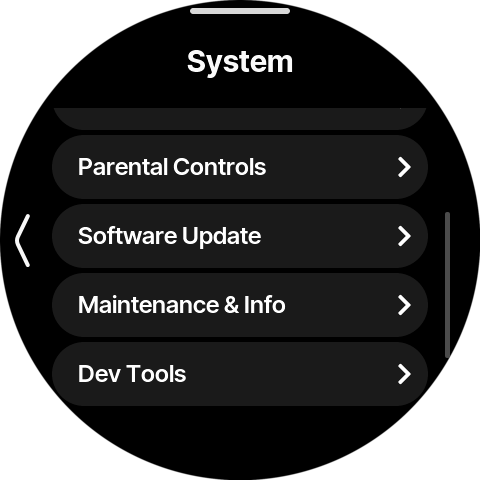
2. The Software Update screen
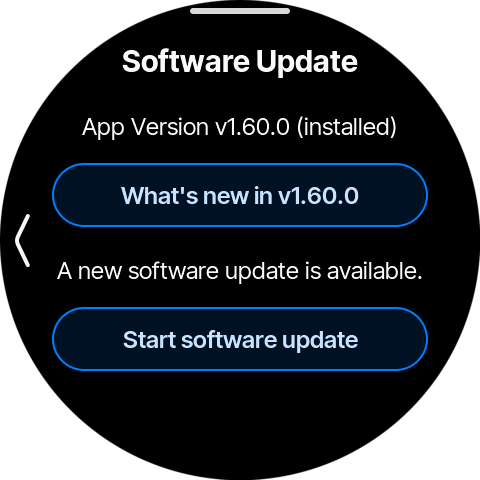
Simply opening this screen starts a check for updates. At the top it shows the app version currently installed on your Dreamie — here, v1.60.0.
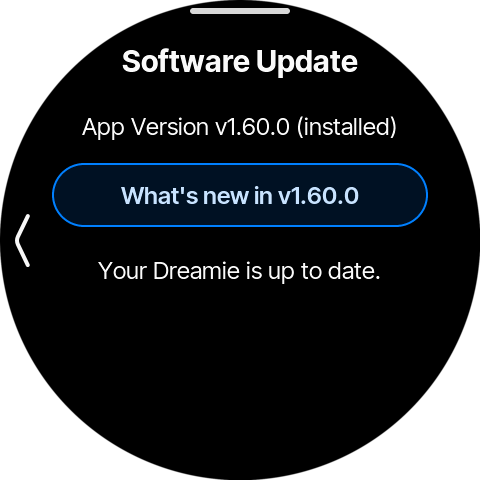
You'll see one of three status messages below the What's new button:
- Checking for updates… — Dreamie is contacting the update server. This clears after a moment.
- Your Dreamie is up to date. — you're on the latest version; there's nothing to install.
- A new software update is available. — a newer version is ready to install (see Installing an update).
3. What's new (release notes)
Tap What's new in v… to read the release notes for the installed version — the new features, improvements and fixes it brought.
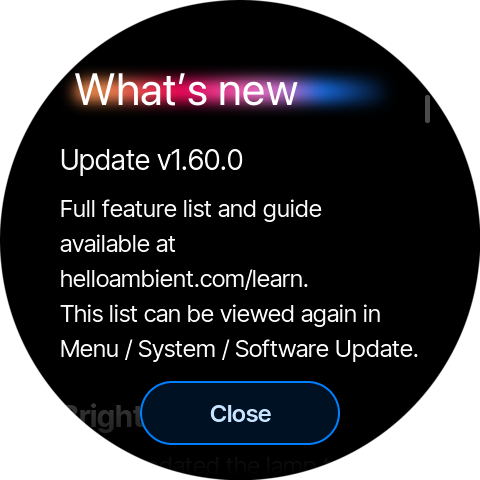
Scroll to read through the full list. The notes also point you to helloambient.com/learn for the complete feature guide.
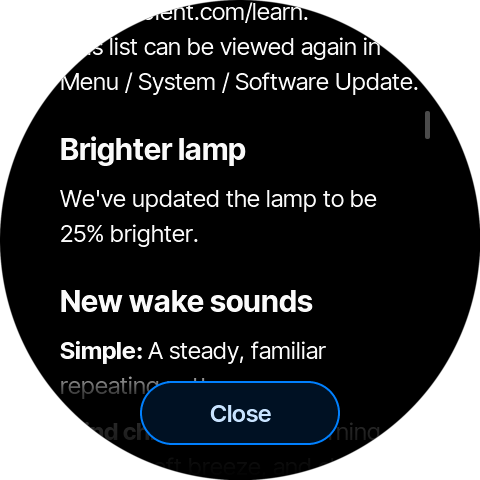
Tap Close when you're done to return to the Software Update screen.
💡 These are the same release notes Dreamie shows you once, automatically, right after it installs an update. You can reopen them here any time, or read them in this manual under Release Notes.
4. Installing an update
When a new version is available, Dreamie only installs it while it's idle, so an update never interrupts your sleep or a scene you're listening to. Dreamie counts as idle when both of these are true:
- it's in the Ambience scene (not Wind Down or any other scene), and
- it isn't playing any content.
When Dreamie is idle, a System Update Available prompt appears on its own and counts down — "Starting upgrade in 20 seconds". When the countdown ends, Dreamie downloads and installs the update ("Downloading and installing update. This can take a few minutes.") and restarts on the new version. Tap Abort if you'd rather not update right now. In this state there's no button to tap — the update is already under way.
When Dreamie isn't idle — a scene other than Ambience is active, or content is playing — it won't interrupt you. Instead the status reads A new software update is available. and a Start software update button appears as a manual override. Tap it to install straight away without waiting for Dreamie to go idle. (This button is only shown in this case; when Dreamie is idle it doesn't appear.)
⚠️ Dreamie needs a Wi‑Fi connection to download an update. If you're not connected, connect first under Menu → System → Wireless Network.
💡 If you abort or defer an update, Dreamie waits a while before prompting you again — so you're never nagged. You can always come back to this screen and tap Start software update to install on your own schedule.
5. Troubleshooting
Dreamie is stuck on "Downloading and installing update." There's nothing to tap on this screen, and that's normal — it disappears by itself once Dreamie has restarted on the new version, which usually takes a few minutes.
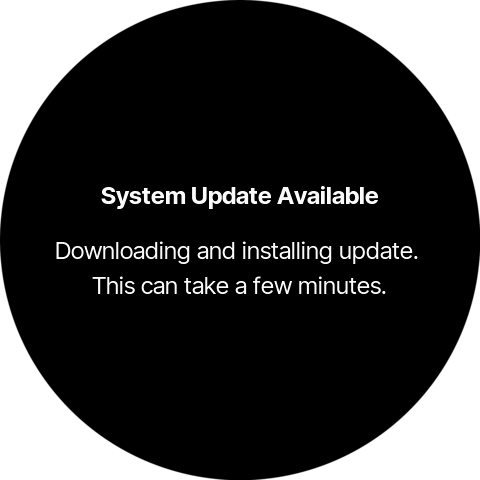
If the download stalls — a weak or dropped Wi‑Fi connection is the usual cause — Dreamie can sit on this screen without finishing. If it hasn't restarted after about ten minutes, unplug the power, wait a few seconds and plug it back in. Once it has started up again, check your connection under Menu → System → Wireless Network and open Software Update to try the update again.
💡 Unplugging at this point is safe: Dreamie switches to the new version only once that version is completely installed, so an interrupted update simply leaves you on the version you were already running.
An update is available, but Dreamie hasn't installed it. Nothing is wrong. Dreamie waits until you're not using it, then installs the update on its own so it never interrupts you (see Installing an update). To install now, open Software Update and tap Start software update.
6. Quick reference
| Task | Where |
|---|---|
| Open Software Update | Menu → System → Software Update |
| See the installed version | Software Update → App Version v… (installed) |
| Read the release notes | Software Update → What's new in v… |
| Check for a new update | Open Software Update (it checks automatically) |
| Install a pending update now | Software Update → Start software update |
| Postpone an in‑progress update | Update prompt → Abort |
| Connect to Wi‑Fi first | Menu → System → Wireless Network |