Bluetooth Headphones
Dreamie can pair with Bluetooth headphones or earbuds so your night-time audio — ambient scenes, the Noise Mask, podcasts and your alarm — plays privately, without disturbing anyone beside you.
Most Bluetooth headphones work with Dreamie. Keep your headphones' own instructions handy: every brand puts them into pairing mode a little differently.
⚠️ For a stable connection, pair your headphones with only Dreamie. If a phone or tablet grabs them first they may not show up on Dreamie — or the sound may keep jumping back to the other device. It also helps to update your headphones' firmware (using the manufacturer's app) before you pair.
Contents
- Opening Bluetooth settings
- Before you pair
- Turning Bluetooth on
- Pairing your headphones
- Confirming the connection
- Disconnecting, reconnecting and forgetting
- Troubleshooting
- Quick reference
1. Opening Bluetooth settings
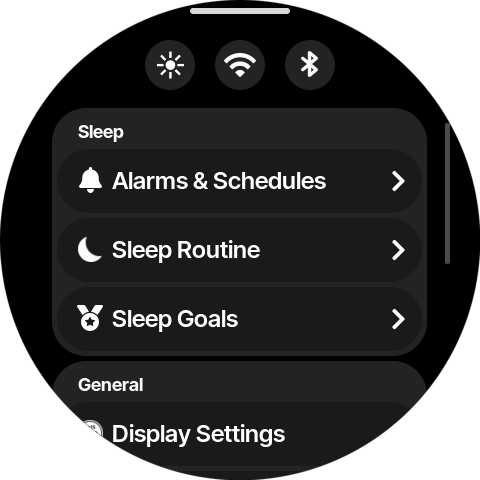
Swipe up from the bottom of the home screen to open the menu. There are two ways to reach Bluetooth from here — both open the same screen.
Quick-access button. A row of round shortcut buttons sits at the top of the menu. Tap the Bluetooth button (rightmost in that row) to jump straight to Bluetooth settings.
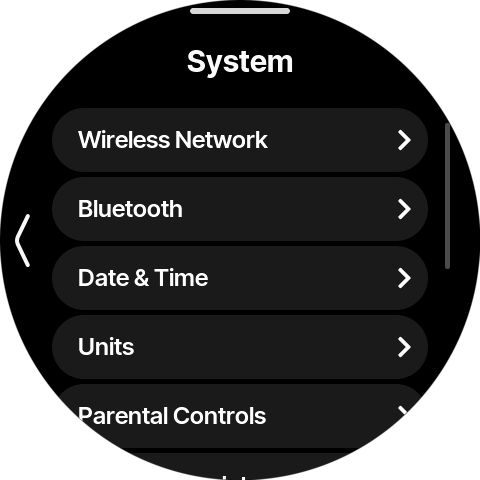
System menu. Alternatively, scroll down to General, tap System, then tap Bluetooth.
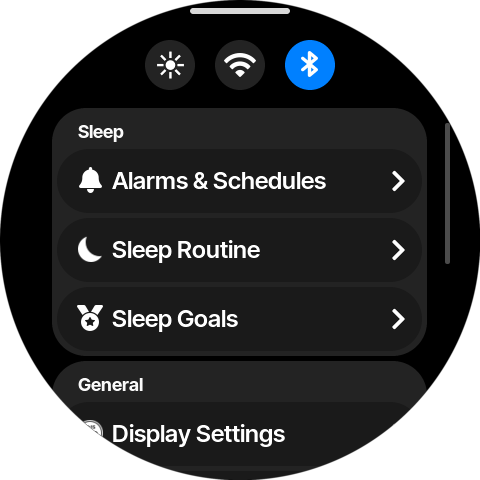
💡 Once a pair of headphones is connected, the quick-access Bluetooth button turns blue — an at-a-glance sign that audio is routed to Bluetooth.
2. Before you pair
A few minutes of prep makes pairing painless:
- Unpair from other devices. If your headphones are already connected to a phone or tablet, forget them there first (on iPhone: Settings → Bluetooth → ⓘ → Forget This Device; on Android: Settings → Connected devices → Unpair). Headphones that are connected elsewhere often won't appear on Dreamie.
- Charge your headphones, and if the maker offers a companion app, install any firmware update.
- Put the headphones into pairing mode. This is usually a button you press and hold until an indicator light blinks — check your headphones' instructions for the exact steps. Powering them on is not always the same as entering pairing mode.
3. Turning Bluetooth on
The Bluetooth screen has a Bluetooth switch at the top. If it's off, you'll see "Bluetooth is off. Turn on to pair devices." — tap the switch to turn it on.
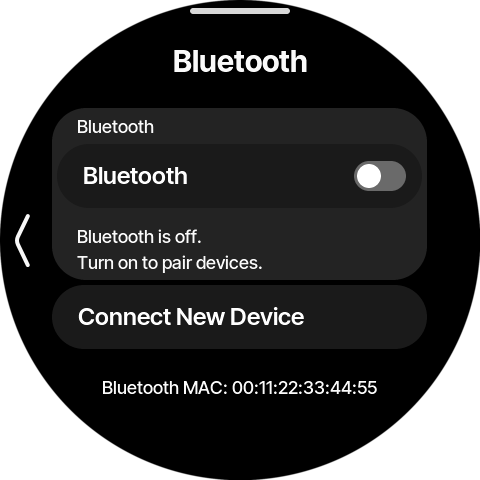
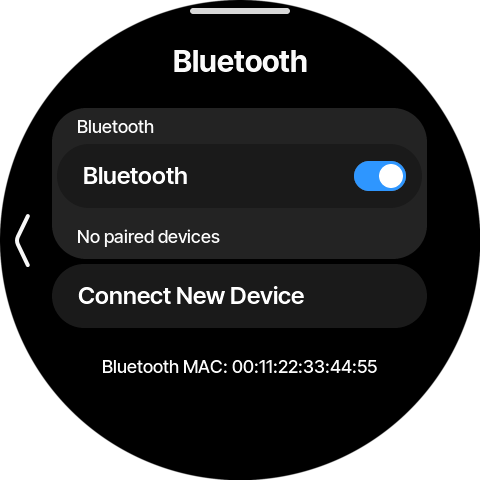
Once it's on, Dreamie is ready to pair. With nothing paired yet, the screen shows No paired devices and a Connect New Device button.
4. Pairing your headphones
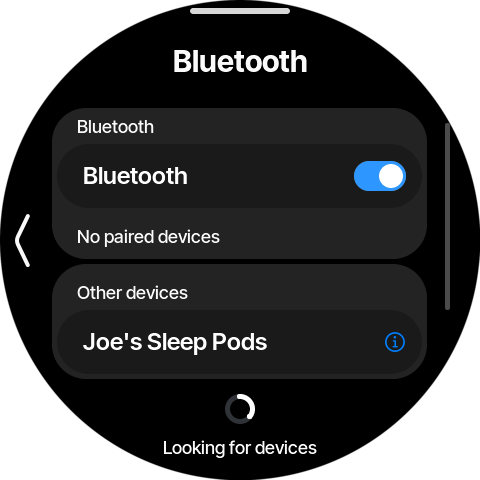
With your headphones in pairing mode, tap Connect New Device. Dreamie starts scanning — a spinner and Looking for devices appear — and nearby headphones show up under Other devices within a few seconds.
Tap your headphones in the list. Dreamie pairs and connects to them: the row moves up to Paired devices and reads Connecting while it links up. This usually takes about ten seconds.
💡 Dreamie scans for about fifteen seconds each time. If your headphones don't appear, make sure they're in pairing mode (not just powered on), move them closer, then tap Connect New Device again.
5. Confirming the connection
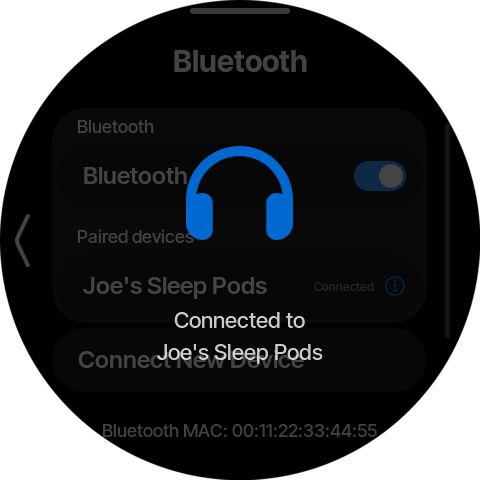
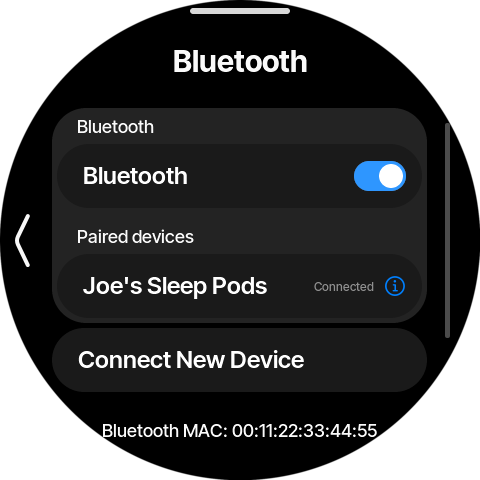
When the link is established, a headphone icon and Connected to <your headphones> appear briefly, and the device now reads Connected in the list.
To check the sound is routing correctly, play something — start a scene from the home screen (such as Ambience) or preview the Noise Mask — and you should hear it in your headphones.
6. Disconnecting, reconnecting and forgetting
Tap a device under Paired devices to open its options.
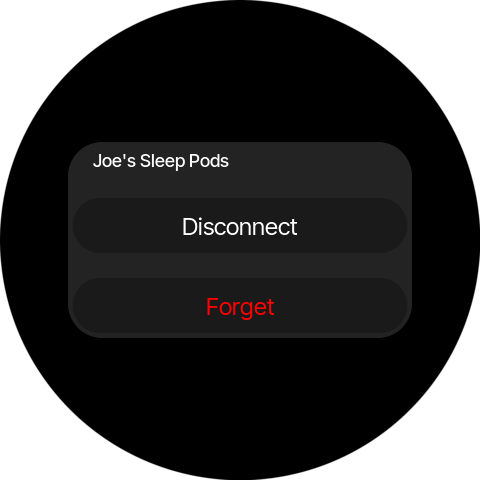
- Disconnect — drops the audio link but keeps the headphones paired, so you can reconnect with a single tap next time. For a device that's paired but not currently connected, this button reads Connect instead.
- Forget — removes the headphones from Dreamie completely. Use this to pair a different pair, or to start fresh when something isn't working. You'll need to pair again from scratch afterwards.
7. Troubleshooting
Headphones don't appear in the list. Confirm they're actually in pairing mode (an indicator usually blinks), move them next to Dreamie, and make sure no phone or tablet is holding the connection. Tap Connect New Device to scan again.
No sound after connecting. This almost always means another device, usually your phone, has reclaimed the headphones. Forget the headphones on both your phone and Dreamie, then pair them with Dreamie alone. Update 1.61 also fixed an issue where some newer headphones paired but stayed silent, so make sure your Dreamie is on 1.61 or later (Menu → System → Software Update).
Audio stops on its own partway through the night. Some headphones pause playback when they sense you've fallen asleep or taken them off. Dreamie hasn't stopped; the headphones have. Open the app that came with your headphones and turn off automatic pausing (it may be called wear detection, auto-pause, or on-ear detection). Sleep earbuds and headphones made for bed usually don't have this setting, and most others let you turn it off.
The connection keeps dropping. Keep the headphones paired only to Dreamie, charge them fully, keep their firmware up to date, and avoid very high volumes.
Start completely fresh. Forget the headphones on Dreamie (Bluetooth → tap the device → Forget) and on any other device, then run through the pairing steps again.
💡 Still stuck? Email support@helloambient.com with your headphone model and a short description of the problem.
8. Quick reference
| Task | Where |
|---|---|
| Open Bluetooth settings (shortcut) | Menu → Bluetooth quick-access button |
| Open Bluetooth settings (menu) | Menu → System → Bluetooth |
| Turn Bluetooth on / off | Bluetooth screen → Bluetooth switch |
| Pair new headphones | Connect New Device → tap your headphones under Other devices |
| Reconnect paired headphones | Tap the device → Connect |
| Disconnect (keep paired) | Tap the device → Disconnect |
| Remove headphones | Tap the device → Forget |
| Stop headphones pausing on their own | Your headphones' companion app → turn off auto-pause / wear detection |