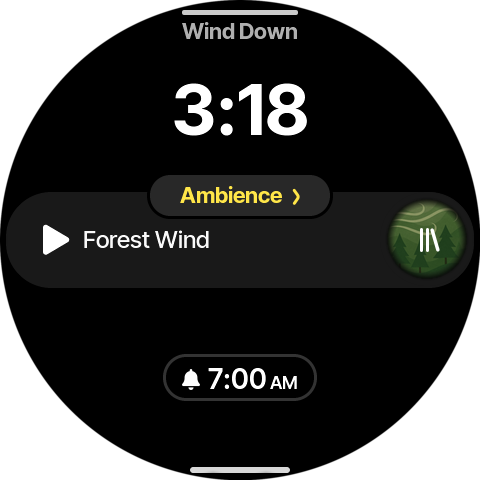
Onboarding
A step-by-step walkthrough of the setup wizard, with a screenshot for every screen. The wizard runs automatically the first time you power on your Dreamie and guides you through connecting to Wi‑Fi, setting your sleep goals, and creating your first wake‑up schedule.
Navigation conventions
Next/Start/Let's go— advance to the next screen.- Back chevron (left edge,
‹) — return to the previous screen. Present on every screen except Welcome and the final "ready" screen. Skip— where shown, jumps past an optional section.- Inputs used during onboarding: the touchscreen (taps/swipes), the rotary control ring, and the brightness touch strip.
1. Welcome
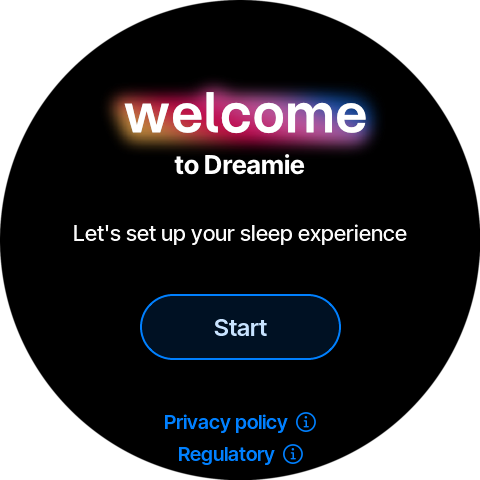
The wizard opens with the welcome screen. Tap Start to begin. Privacy policy and Regulatory info are reachable from the bottom links.
2. Connect to Wi‑Fi
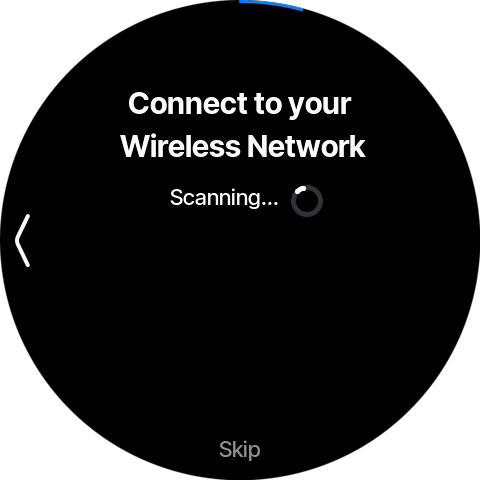
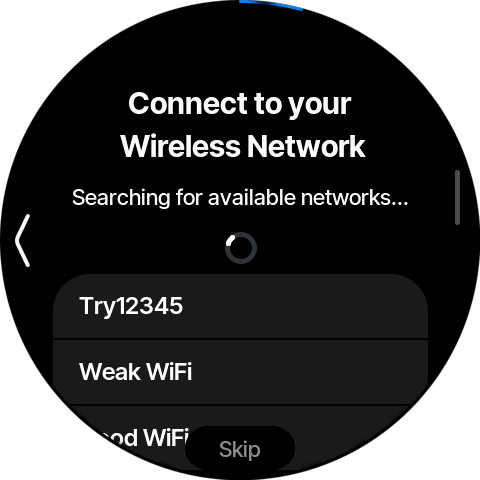
Dreamie scans for nearby wireless networks and shows them under Available Networks. (You can tap Skip to set up Wi‑Fi later — skipping also bypasses the software-update check in step 3.)
- Wait for the scan to finish, then tap your network (Try12345 in the example below).
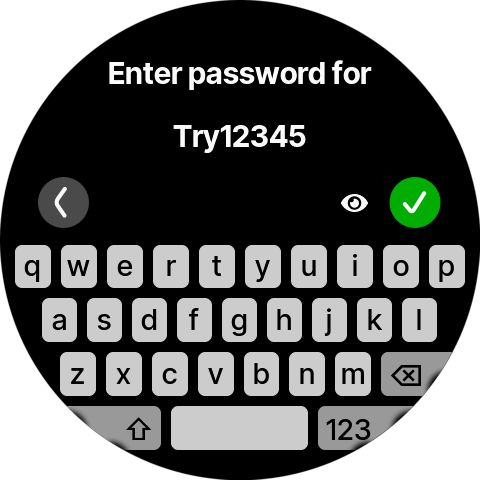
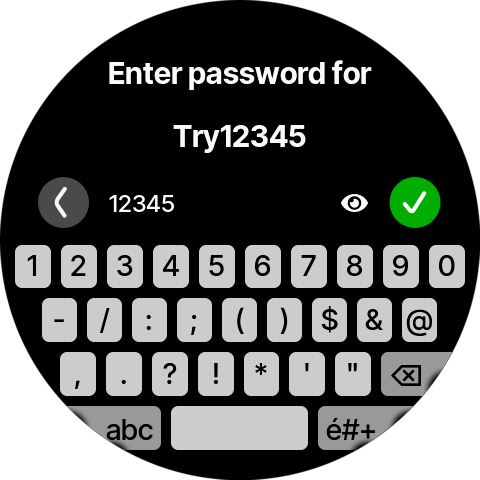
- Enter the password on the on-screen keyboard (tap 123 for the numeric layout), then tap the green ✓. The eye icon reveals the typed password.
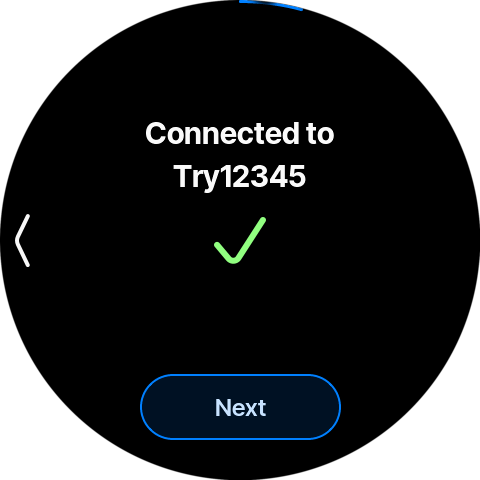
- Dreamie shows Connecting to …, then Connected to … with a green checkmark. Tap Next.
3. Checking for software updates
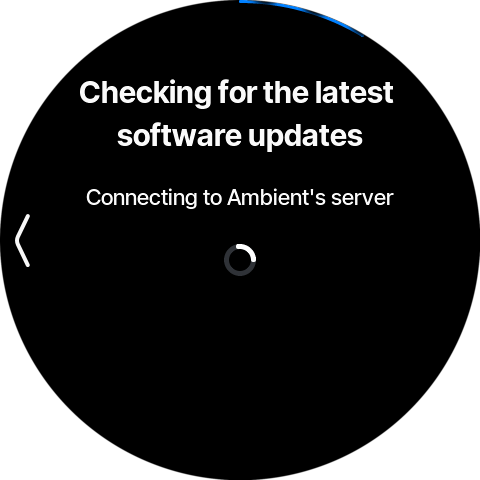
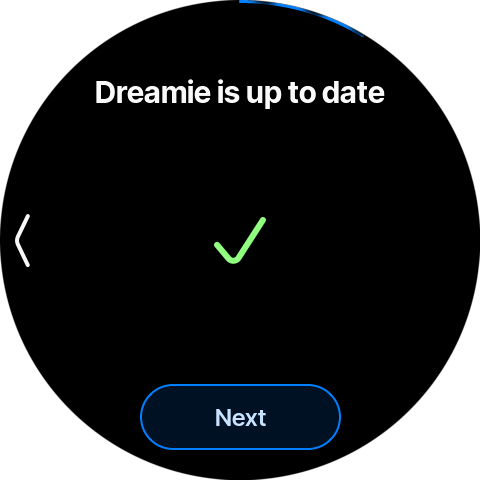
Once Wi‑Fi is connected, Dreamie automatically checks for the latest software updates ("Connecting to Ambient's server"). If an update is available it downloads and installs here; otherwise it shows "Dreamie is up to date" with a checkmark. Tap Next. This screen is skipped entirely if you skipped Wi‑Fi.
4. Set your time zone
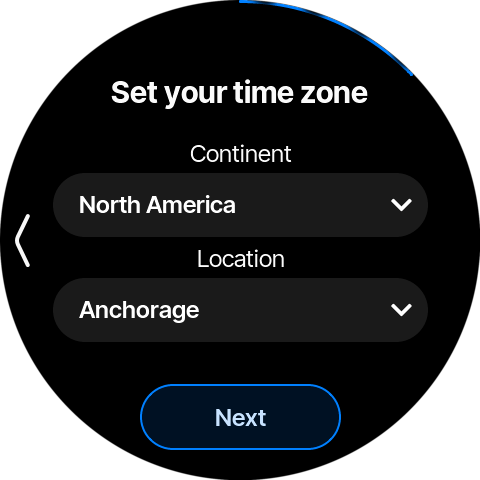
Pick your Continent, then your Location. Next is enabled once a location is selected.
5. Reflect on your sleep
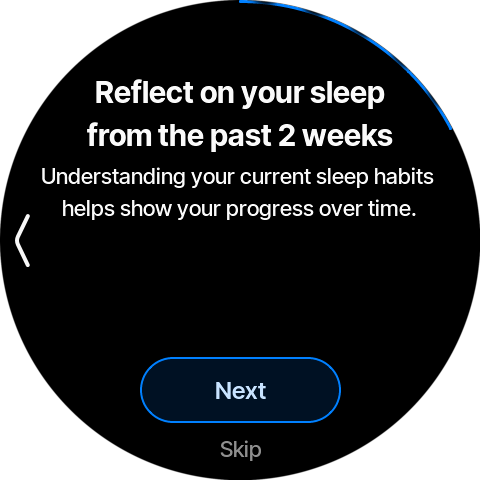
A short intro to the sleep-profile questions: "Understanding your current sleep habits helps show your progress over time." Tap Next (or Skip to jump straight to sleep goals).
6. Profile — how many hours do you sleep?
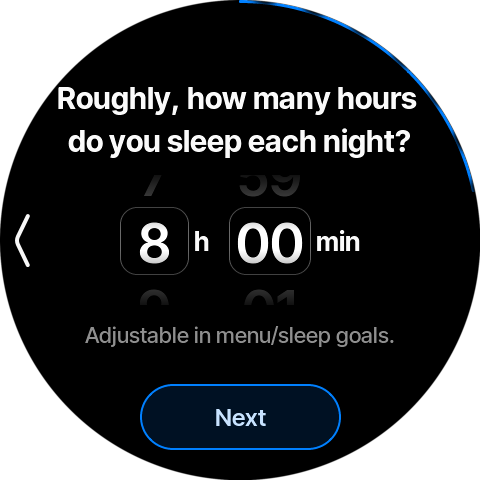
Set roughly how many hours you currently sleep each night using the hour/minute selector. All profile values are "Adjustable in menu/sleep goals."
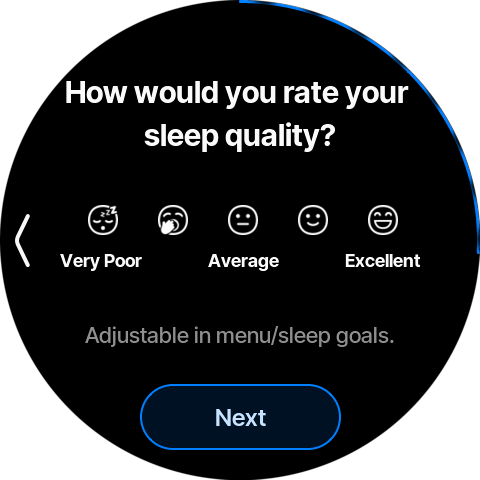
7. Profile — rate your sleep quality
Tap one of the five faces, from Very Poor to Excellent.
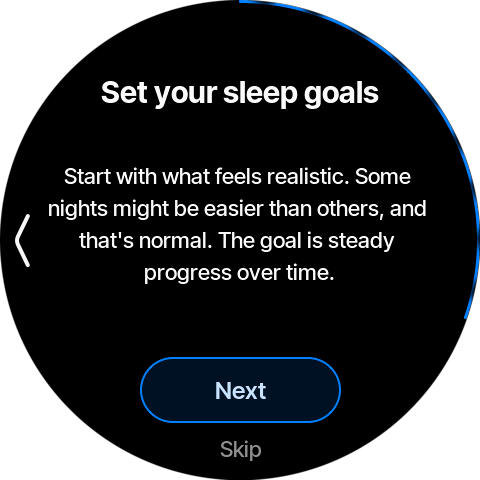
8. Set your sleep goals (intro)
Transition screen: "Start with what feels realistic… The goal is steady progress over time." Tap Next (or Skip).
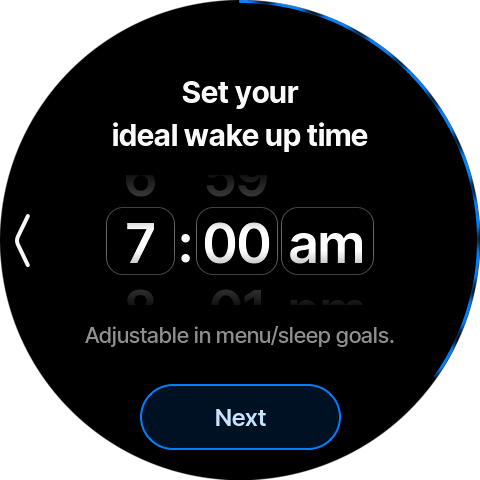
9. Goal — ideal wake-up time
Set the time you'd like to wake up. Used to compute your recommended bedtime two screens later.
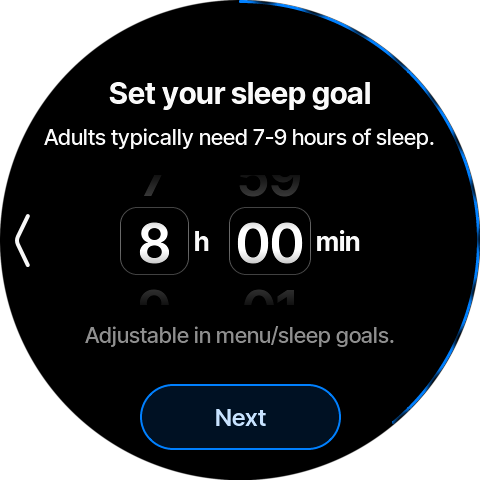
10. Goal — sleep duration
Set your target nightly sleep. The hint notes "Adults typically need 7–9 hours of sleep."
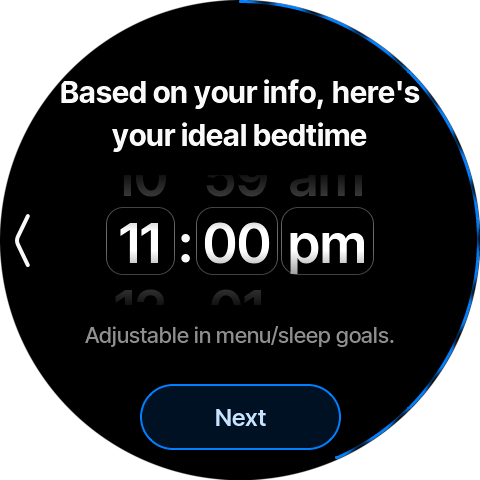
11. Goal — recommended bedtime
Dreamie computes an ideal bedtime from (ideal wake-up − sleep goal) — e.g. 7:00 am − 8 h = 11:00 pm. Adjust it if you like, then continue.
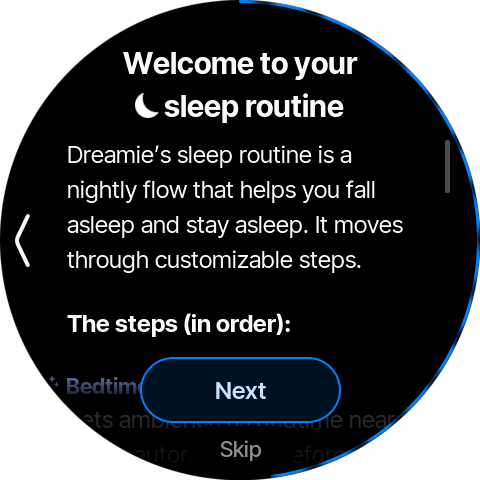
12. Welcome to your sleep routine
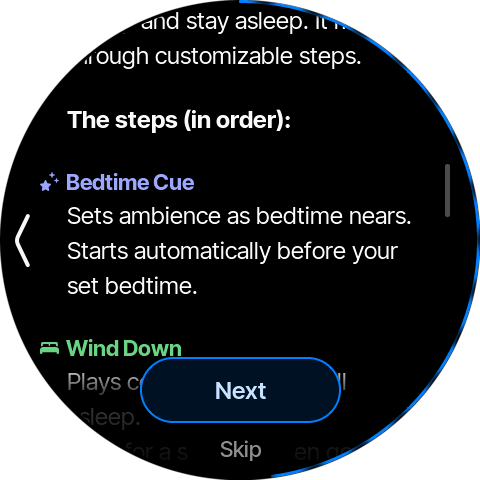
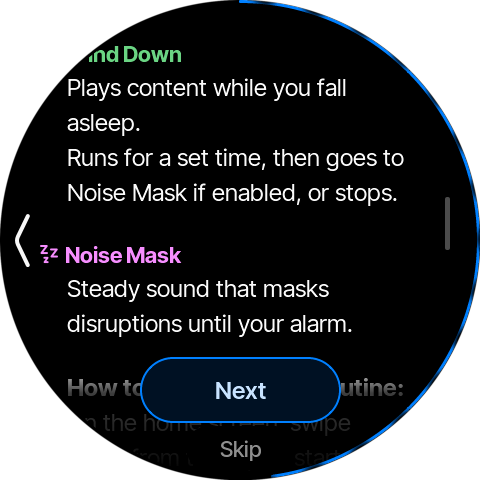
An explainer for the nightly routine, which moves through three customizable steps (scroll to read all):
| Step | What it does |
|---|---|
| ✨ Bedtime Cue | Sets ambience as bedtime nears. Starts automatically before your set bedtime. |
| 🛏️ Wind Down | Plays content while you fall asleep. Runs for a set time, then goes to Noise Mask if enabled, or stops. |
| 💤 Noise Mask | Steady sound that masks disruptions until your alarm. |
Scrolling further reveals how to start the routine and a note that the next pages let you customize it:
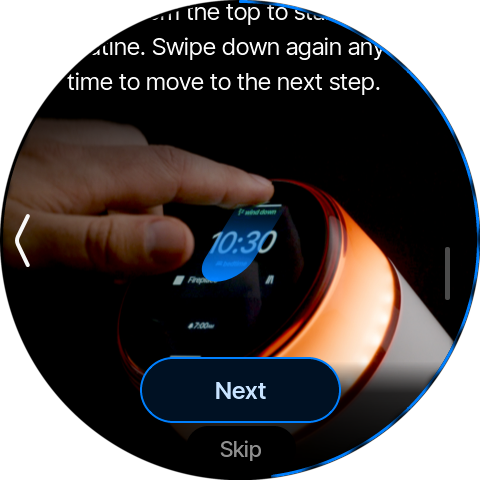
How to start: On the home screen, swipe down from the top to start your routine. Swipe down again any time to move to the next step.
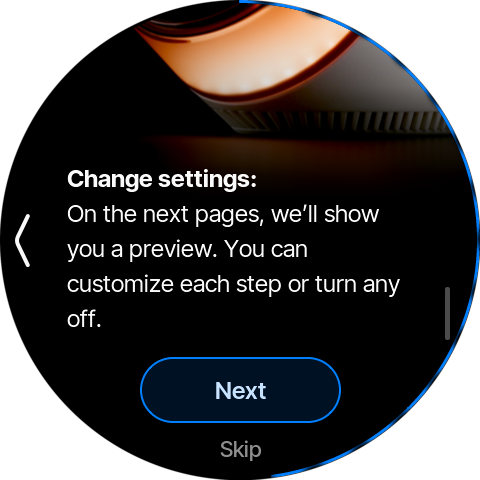
Change settings: On the next pages, we'll show you a preview. You can customize each step or turn any off.
13. Configure — Bedtime Cue
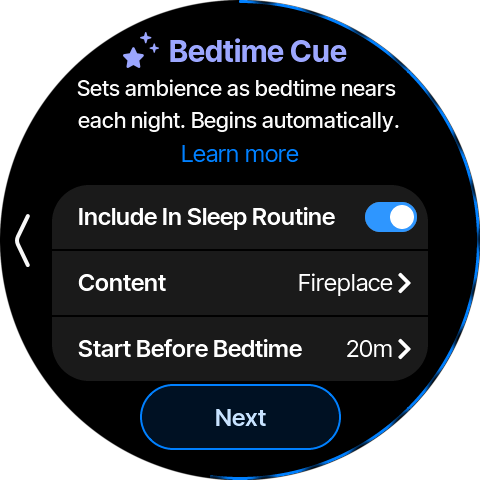
Toggle Include In Sleep Routine, pick the Content (default Fireplace) and how long before bedtime it Starts (default 30m). Tapping Learn more opens the detail card:
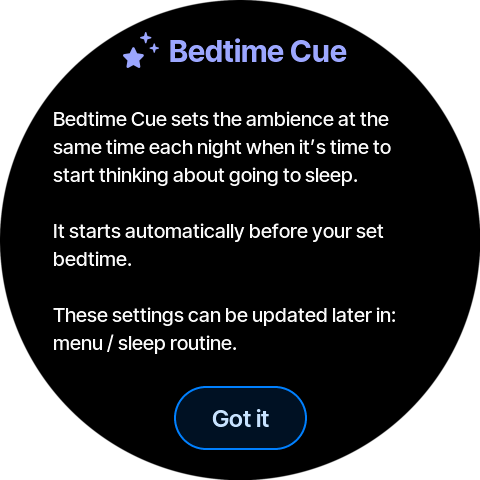
Bedtime Cue sets the ambience at the same time each night when it's time to start thinking about going to sleep. It starts automatically before your set bedtime. These settings can be updated later in: menu / sleep routine.
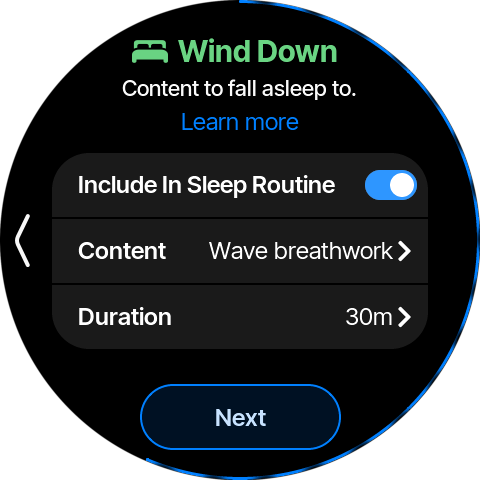
14. Configure — Wind Down
Content to fall asleep to. Default Content Wave breathwork, Duration 30m. Learn more:
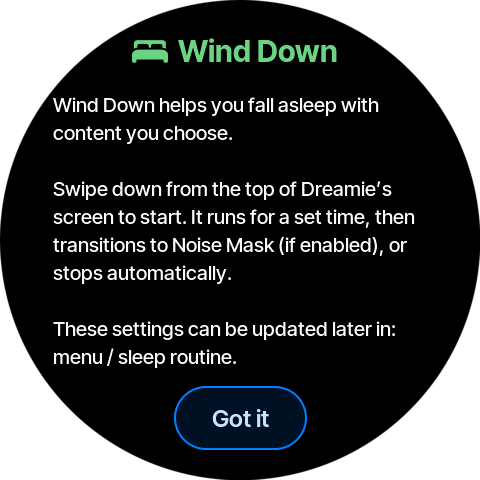
Wind Down helps you fall asleep with content you choose. Swipe down from the top of Dreamie's screen to start. It runs for a set time, then transitions to Noise Mask (if enabled), or stops automatically. These settings can be updated later in: menu / sleep routine.
15. Configure — Noise Mask
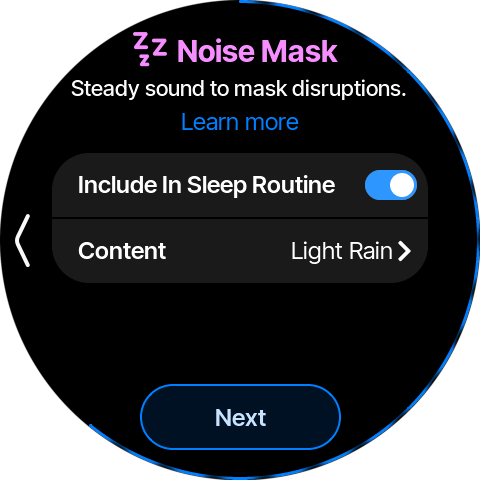
Steady sound to mask disruptions. Default Content Light Rain. Learn more:
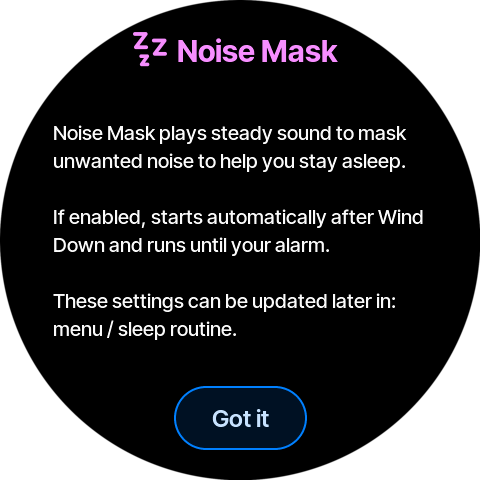
Noise Mask plays steady sound to mask unwanted noise to help you stay asleep. If enabled, starts automatically after Wind Down and runs until your alarm. These settings can be updated later in: menu / sleep routine.
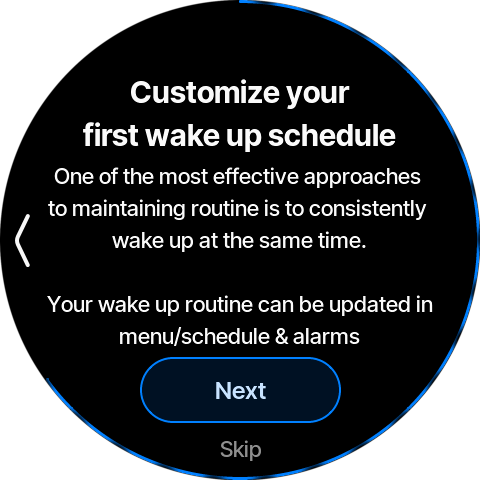
16. Customize your first wake-up schedule (intro)
"One of the most effective approaches to maintaining routine is to consistently wake up at the same time." Tap Next (or Skip).
17. Set your first schedule
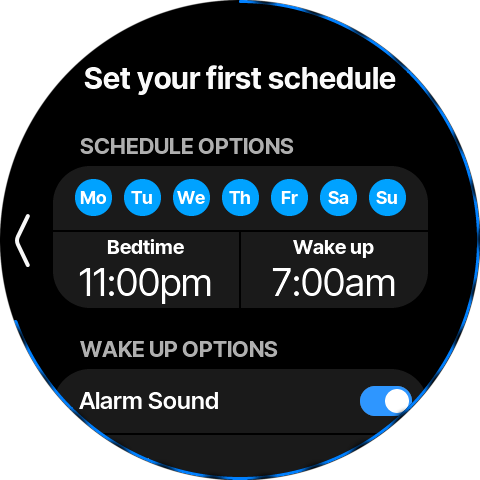
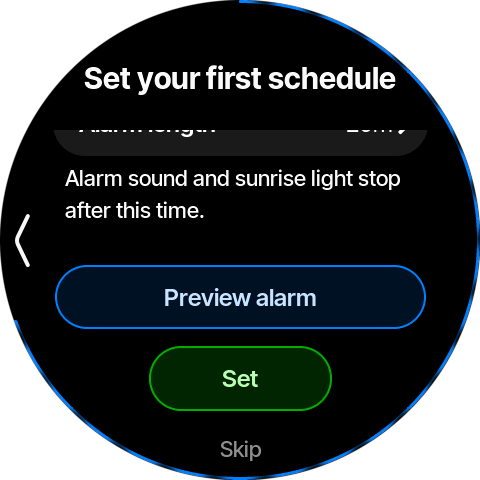
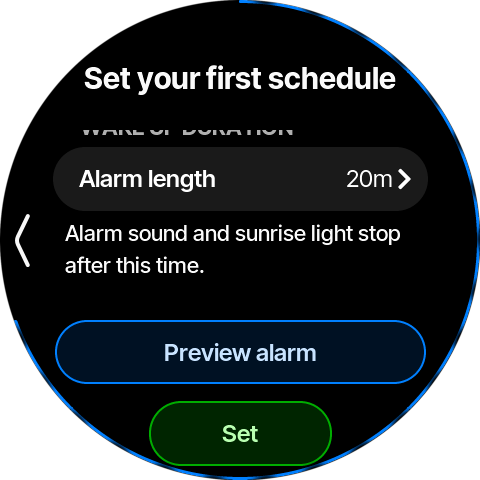
This screen scrolls through three groups of controls. Preview alarm plays the configured sound + sunrise light so you can try it; the green Set confirms and saves the schedule.
Schedule options
- Days — chips Mo–Su select which days the alarm repeats (all selected by default).
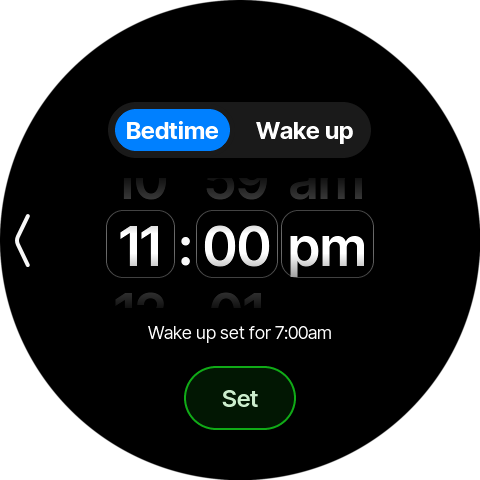
- Bedtime / Wake up — pre-filled from your sleep goals (11:00 pm / 7:00 am). Tapping either opens a shared time picker with a Bedtime / Wake up toggle at the top; set the time on the rollers and tap Set.
Wake up options
Each option is a toggle; turning it on reveals its sub-rows (tap a value row with a › to open its picker).
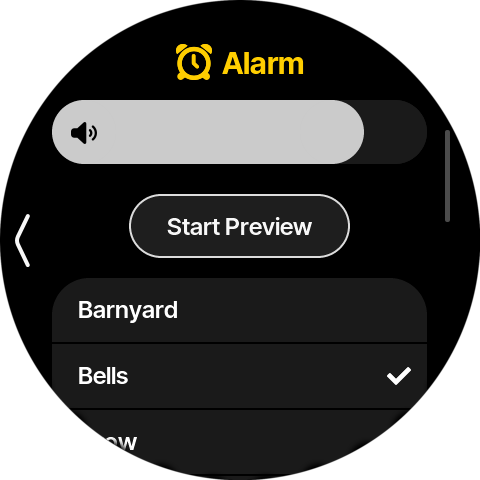
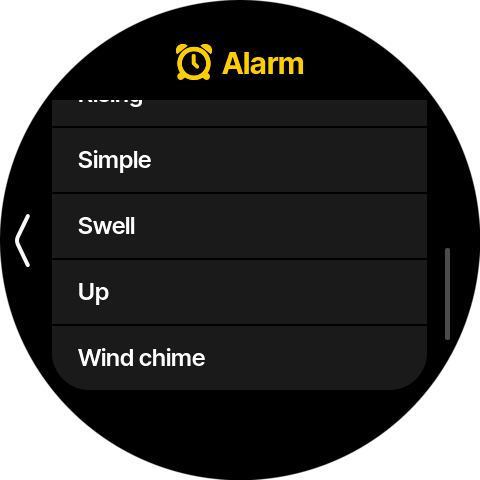
Alarm Sound (default on) reveals: - Sound (default Bells) — opens the alarm-sound picker: a volume slider, a Start Preview button, and the sound list — Barnyard, Bells, Grow, Morning Songbirds, Rising, Simple, Swell, Up, Wind chime. - Alarm length — duration the alarm plays (see Wake up duration below; both map to the same setting, default 20m).
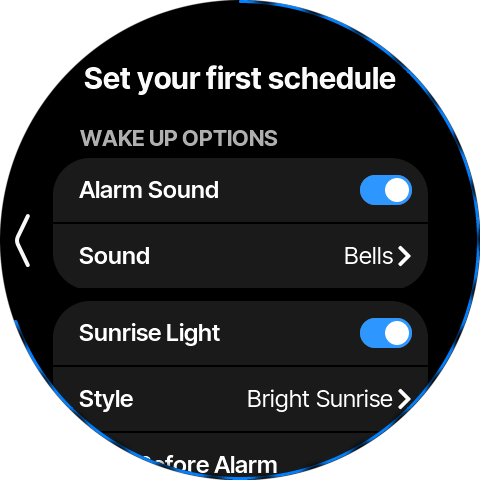
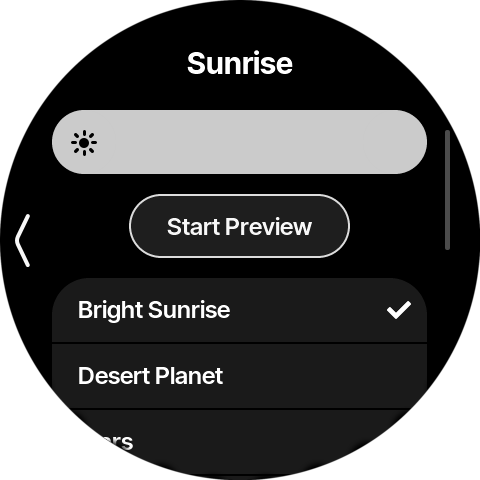
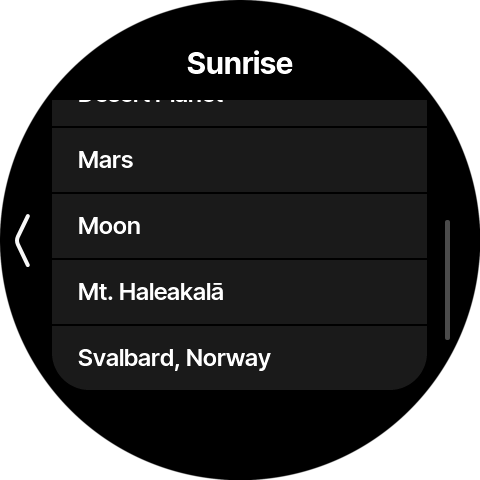
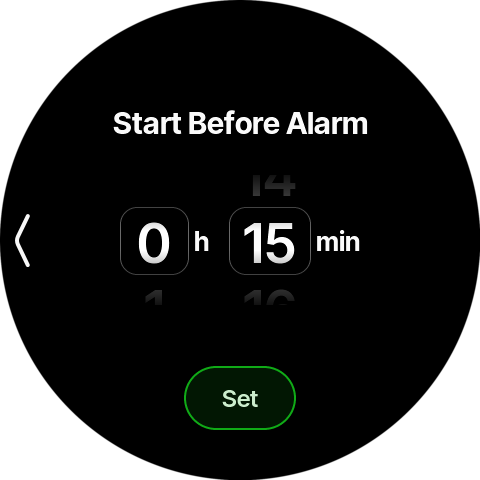
Sunrise Light (default on) reveals: - Style (default Bright Sunrise) — opens the sunrise picker: a brightness slider, Start Preview, and the style list — Bright Sunrise, Desert Planet, Mars, Moon, Mt. Haleakalā, Svalbard, Norway. - Start Before Alarm (default 15m) — how early the light begins ramping up before the alarm; opens an hours/minutes duration picker.
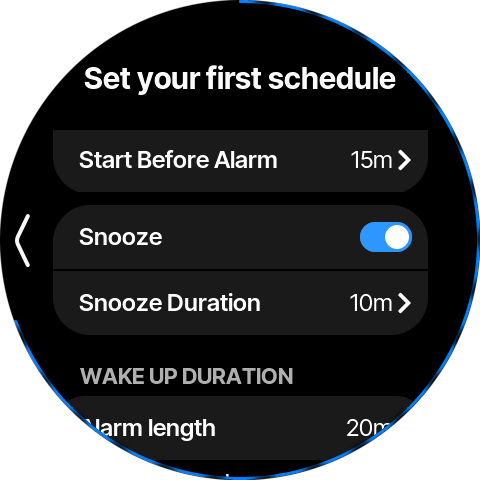
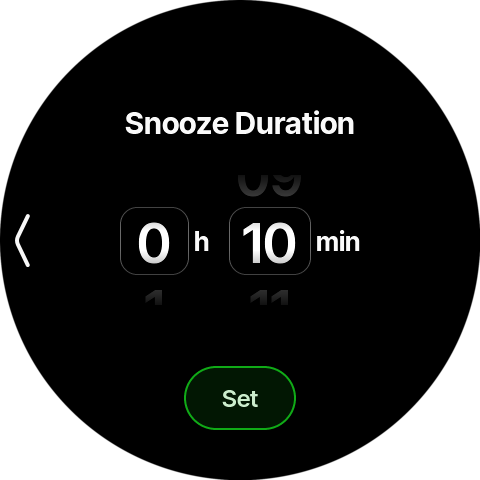
Snooze (default off) — when turned on, reveals Snooze Duration (default 10m), which opens an hours/minutes duration picker. (If both Alarm Sound and Sunrise Light are off, Snooze is disabled.)
Wake up duration
- Alarm length (default 20m) — "Alarm sound and sunrise light stop after this time." Opens an hours/minutes duration picker.
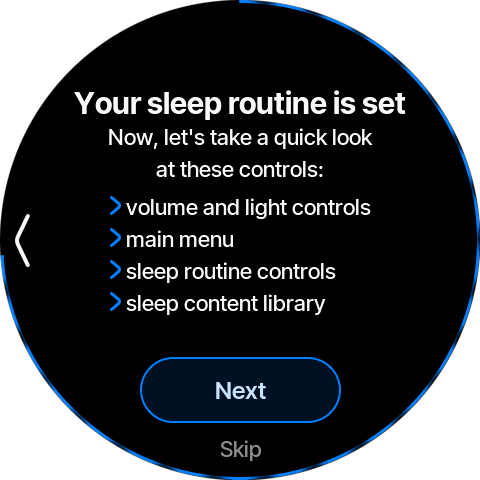
18. Your sleep routine is set (tutorial intro)
Intro to the hands-on tutorials covering volume/light controls, the main menu, sleep-routine controls, and the content library. Tap Next (or Skip to jump to the end).
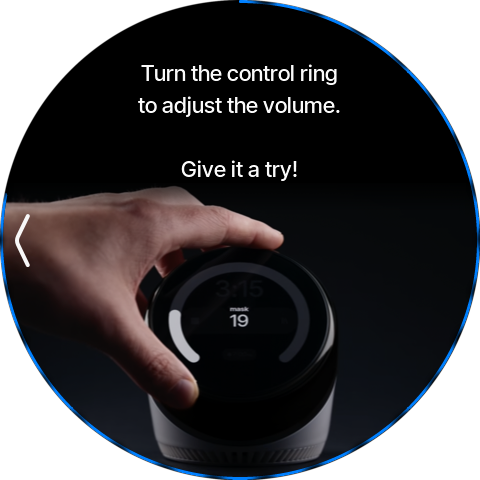
19. Tutorial — Volume
"Turn the control ring to adjust the volume." Rotate the control ring. A "Nicely done!" checkmark confirms, then the screen auto-advances.
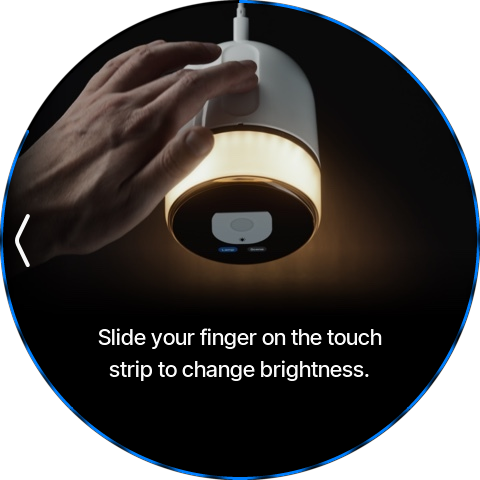
20. Tutorial — Brightness
"Slide your finger on the touch strip to change brightness." Use the capacitive brightness strip (slider). A "Nicely adjusted!" checkmark confirms and the screen auto-advances.
21. Tutorial — Main menu
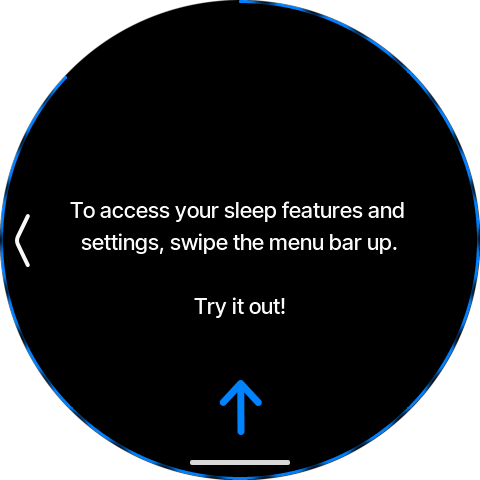
"Swipe the menu bar up." Swipe up from the bottom edge. A "Nice job!" confirmation appears with a Got it button.
22. Tutorial — Sleep-routine controls
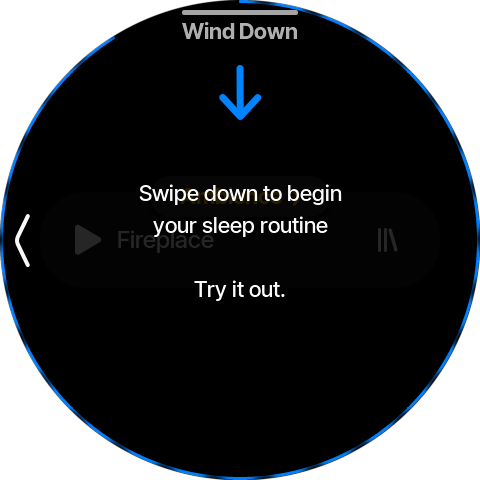
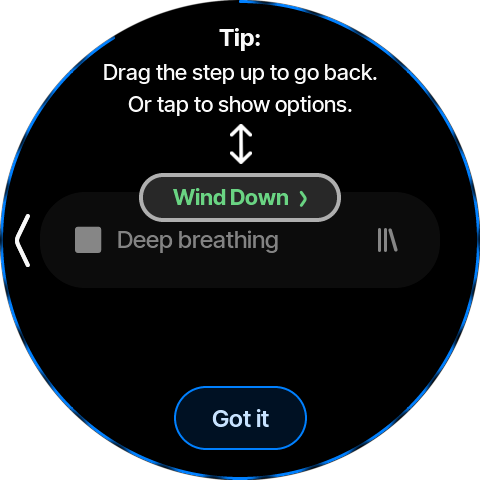
"Swipe down to begin your sleep routine." Swipe down on the scene widget. A modal explains "This is one step in your routine. This one is wind down.", followed by a Tip: "Drag the step up to go back. Or tap to show options." Dismiss each with Got it.
23. Tutorial — Content library
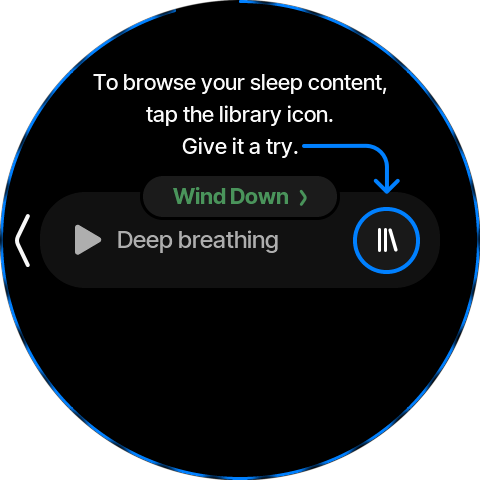
"Tap the library icon." Tap the round library icon to open the content browser (sleep content + podcasts). A "Nice job." modal notes "You can also access podcasts from the library." Tap Got it.
24. All set
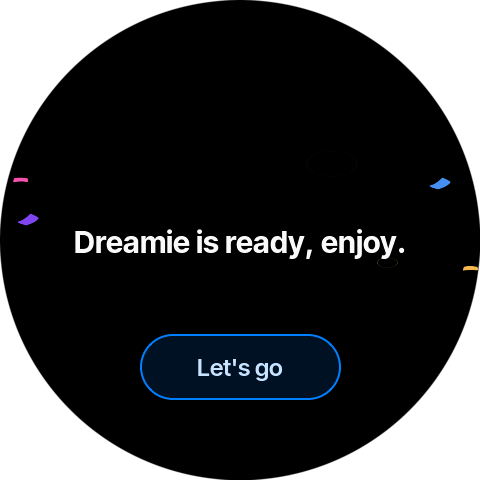
"Dreamie is ready, enjoy." with a confetti animation. Tap Let's go to finish the setup — the wizard won't run again.
25. Home screen
Onboarding finishes on the home screen: current scene/content player, clock, and the next wake-up indicator.