Alarms & Wake‑Up
This guide walks you through everything the alarm function does: creating a wake‑up schedule, choosing your alarm sound, setting up the sunrise wake‑up light, enabling snooze, and what to do when the alarm goes off in the morning.
Contents
- The Next Wake Up shortcut
- One‑time wake‑up override
- Opening Alarms & Schedules
- Creating an alarm schedule
- Editing a schedule
- Setting the wake‑up time
- Alarm sound
- Sunrise wake‑up light
- Snooze
- Alarm length
- Previewing your alarm
- When the alarm goes off
- Quick reference
1. The Next Wake Up shortcut
On the home screen, the bell icon in the lower third is the Next Wake Up widget. It shows your next scheduled wake‑up time at a glance (a bell with a line through it means no alarm is set yet). Tap it for quick access to your alarms.
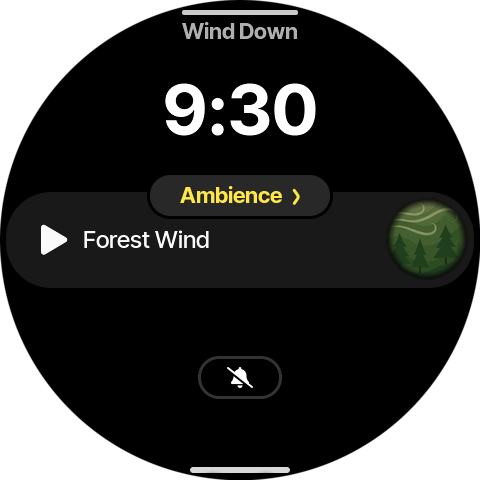
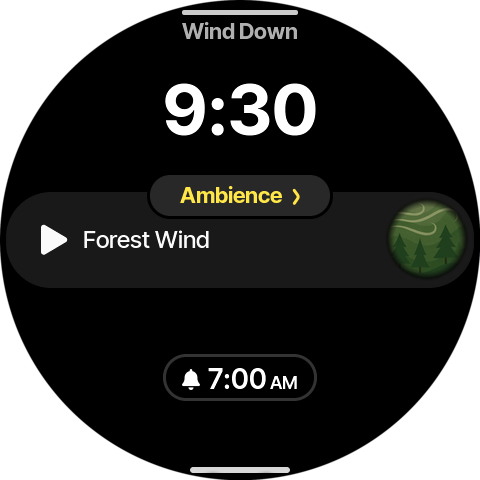
Once a regular schedule is active, the widget shows your next wake‑up time instead — here, 7:00 AM.
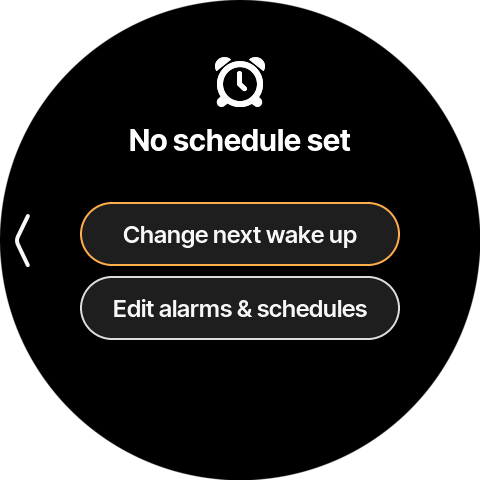
Tapping the widget opens the Next Wake Up panel.
When no schedule is set, the panel is headed No schedule set and offers two actions:
- Change next wake up — adjust only the next alarm without touching your recurring schedule (handy for an early start or a lie‑in tomorrow).
- Edit alarms & schedules — manage all of your recurring alarms.
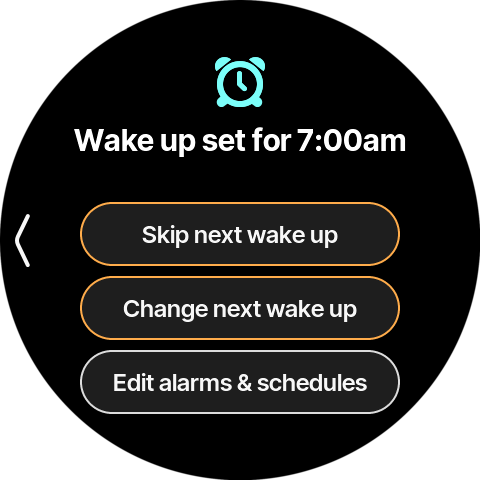
When a regular schedule is set, the panel is headed with your next wake‑up time (e.g. Wake up set for 7:00am) and adds a Skip next wake up action above the other two:
- Skip next wake up — skip just the next occurrence of the alarm while leaving the recurring schedule in place (handy when you don't need waking tomorrow).
- Change next wake up — adjust only the next alarm without touching your recurring schedule.
- Edit alarms & schedules — manage all of your recurring alarms.
Skipping (and un‑skipping) the next wake up
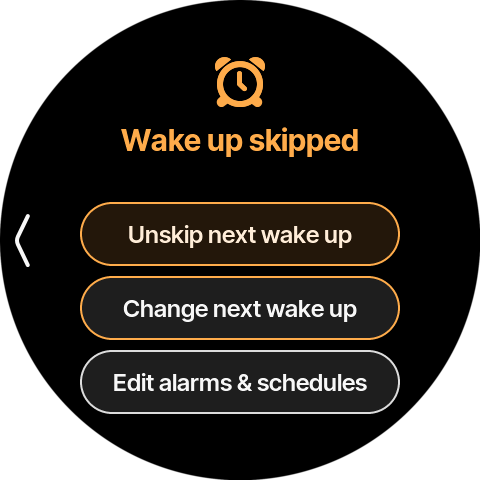
Tap Skip next wake up to silence only the next occurrence of your alarm. The recurring schedule stays in place — it will ring again as normal the day after. The panel confirms with Wake up skipped, and the button changes to Unskip next wake up.
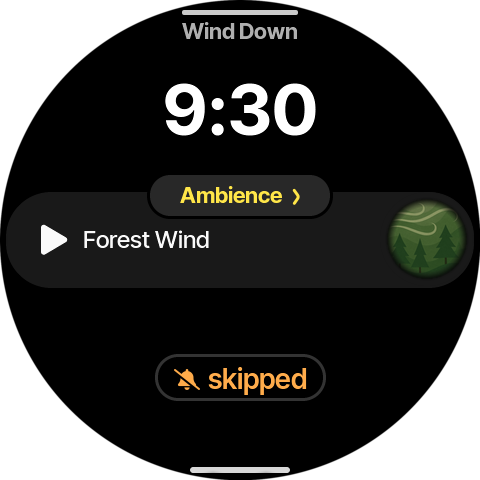
Back on the home screen, the Next Wake Up widget shows a struck‑through bell with skipped instead of the wake‑up time, so you can see at a glance that tomorrow's alarm is off.
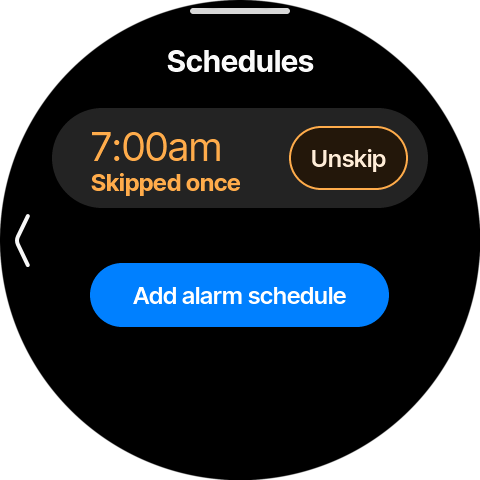
A skipped alarm is also flagged in your Alarms & Schedules list — the alarm is labeled Skipped once in orange, and its on/off toggle is replaced by an Unskip button that restores it.
Changed your mind? Open the panel again and tap Unskip next wake up — the alarm is restored and the panel returns to Wake up set for 7:00am.
💡 You can also reach the same place from the main menu (swipe up from the bottom edge) → Sleep → Alarms & Schedules.
2. One‑time wake‑up override
Sometimes you need to wake up at a different time just once — an early flight, or a single lie‑in — without disturbing your recurring schedule. That is what Change next wake up is for.
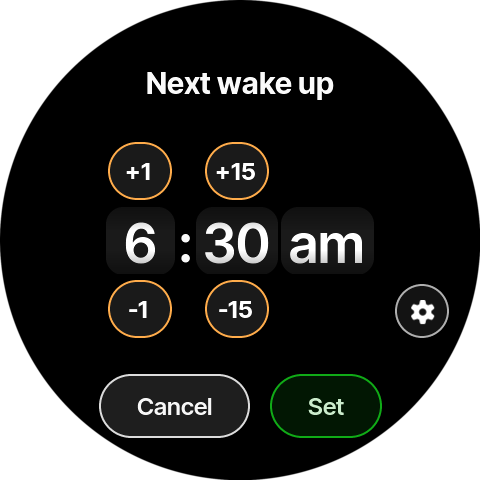
Open the Next Wake Up panel (tap the home‑screen bell) and tap Change next wake up to open the override picker. Adjust the time and tap Set:
- +1 / ‑1 shift the hour.
- +15 / ‑15 shift the minutes.
- Set applies the override; Cancel discards it.
Once set, the home‑screen widget shows the one‑time time in orange (here, 6:30 AM) so it's clear this isn't your usual alarm. The Next Wake Up panel header likewise reads Next wake up set for 6:30am in orange.
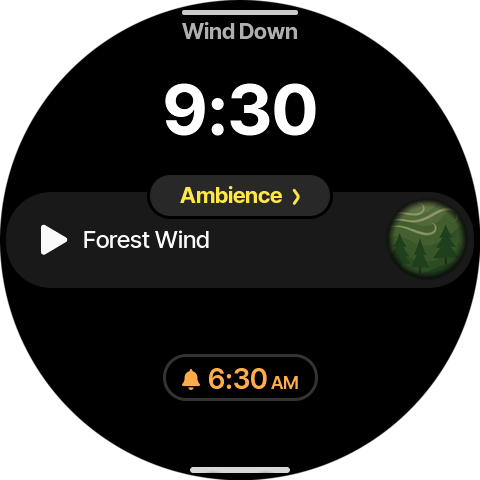
💡 An override applies to the next wake up only. After it rings (or is skipped), your regular schedule automatically takes over again.
The override in your schedule list
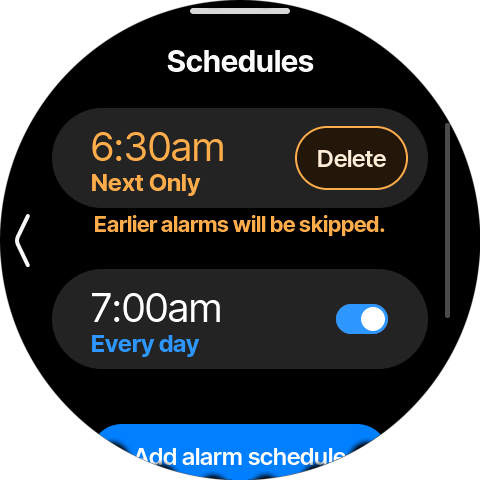
An active override also appears at the top of your Alarms & Schedules list as an orange Next Only entry, above your recurring alarms, with the reminder Earlier alarms will be skipped beneath it. Tap Delete on the entry to cancel the override and fall back to your recurring schedule.
Customizing the one‑time alarm
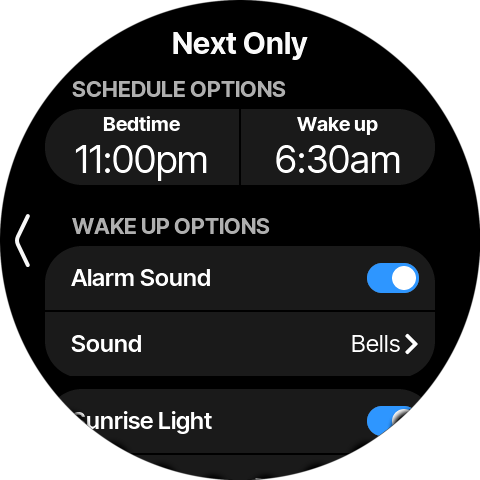
Need more than a different time? Tap the gear icon in the override picker to open the Next Only editor. It offers the same options as a regular schedule — bedtime, alarm sound, sunrise light, snooze and alarm length — but every change applies only to the next wake up.
Reverting to your schedule
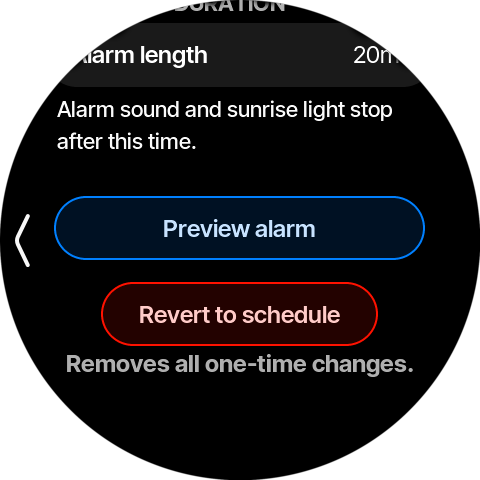
To cancel a one‑time override before it fires, open the Next Only editor, scroll to the bottom, and tap Revert to schedule. This removes all one‑time changes and restores your normal recurring alarm.
3. Opening Alarms & Schedules
Tap Edit alarms & schedules to open the Schedules list. This is where all of your alarms live. When the list is empty, only the Add alarm schedule button is shown.
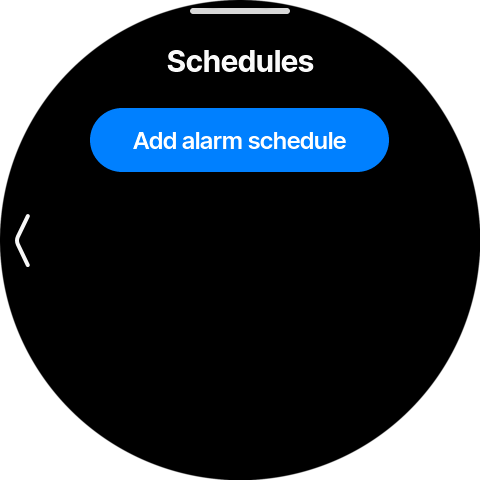
4. Creating an alarm schedule
Tap Add alarm schedule. A new schedule is created with sensible defaults (7:00 am, every day) and added to the list. Each row shows the wake‑up time, the repeat days, and an on/off toggle.
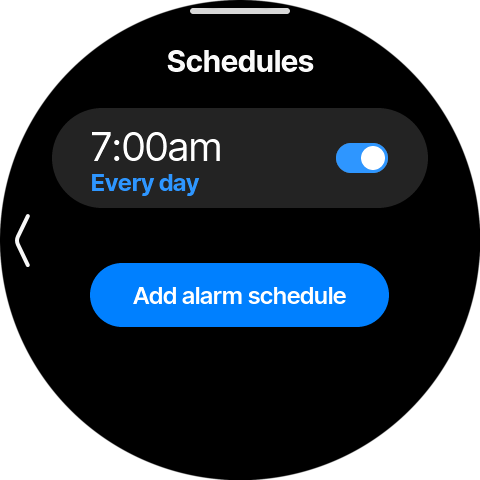
💡 You can add as many schedules as you like — for example a weekday alarm and a separate weekend one. Use the toggle on the right to turn a schedule on or off without deleting it.
5. Editing a schedule
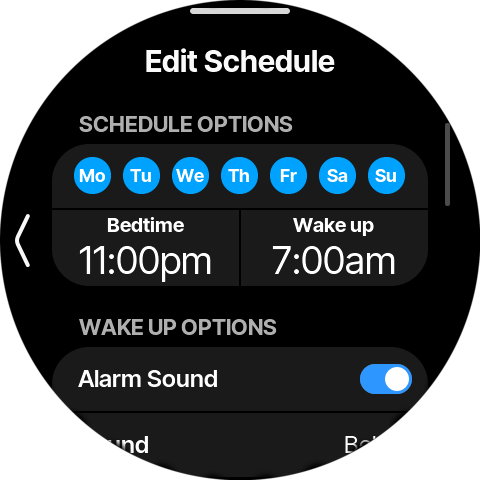
Tap a schedule row to open the Edit Schedule screen. Scroll vertically to reach every option.
At the top, under SCHEDULE OPTIONS:
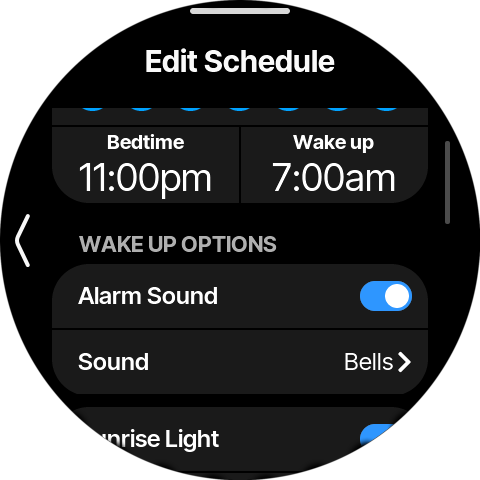
- Repeat days — tap the day circles (Mo–Su) to choose which days this alarm repeats. Highlighted days are active.
- Bedtime — your target time to wind down and go to sleep.
- Wake up — the time the alarm rings.
6. Setting the wake‑up time
Tap the Wake up button to open the time picker. Use the Bedtime / Wake up switch at the top to choose which time you are editing.
Spin the hour, minute, and AM/PM wheels to your desired time, then tap Set to confirm.
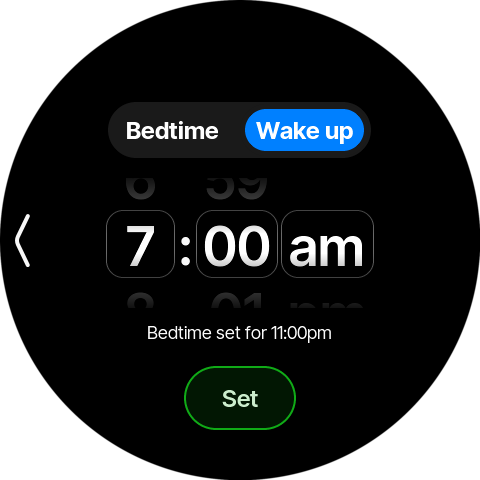
💡 You can spin the wheels with your finger or turn the rotary ring to adjust the highlighted value.
7. Alarm sound
Below the times, under WAKE UP OPTIONS:
- Alarm Sound — the master toggle for the audible alarm. Turn it off if you only want the sunrise light to wake you.
- Sound — tap to pick the tone or track that plays when the alarm rings (shown here as Bells).
8. Sunrise wake‑up light
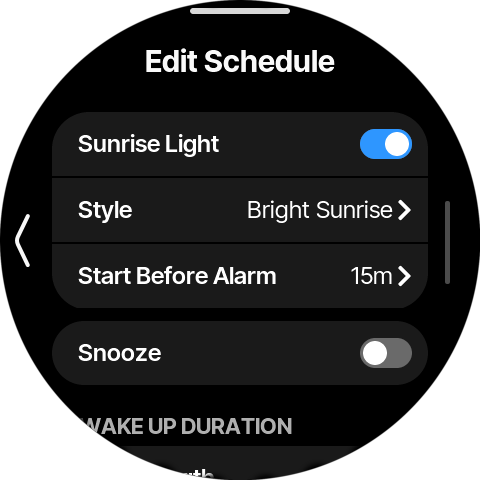
The Sunrise Light gradually brightens the lamp before your alarm time to wake you more gently.
- Sunrise Light — toggle the wake‑up light on or off.
- Style — choose the light animation (e.g. Bright Sunrise).
- Start Before Alarm — how long before the wake‑up time the light begins to rise (e.g. 15 minutes).
9. Snooze
Directly below the sunrise options is the Snooze toggle. When enabled, a Snooze button appears on the alarm screen so you can grab a few more minutes. Tap into the snooze row to set the snooze length (default 10 minutes).
The screenshot above (Section 8) shows the Snooze toggle in the off position.
10. Alarm length
Under WAKE UP DURATION, Alarm length controls how long the alarm keeps trying to wake you. Alarm sound and sunrise light stop after this time if you don't dismiss it.
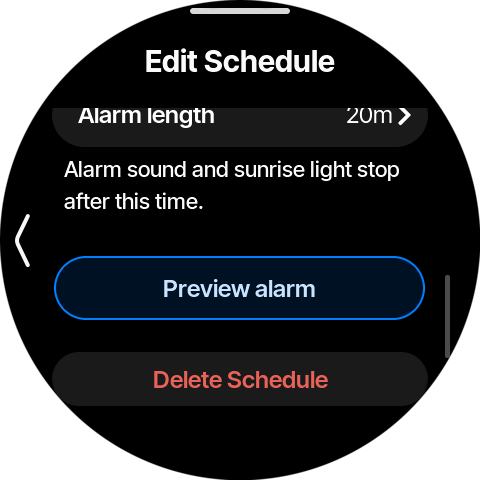
💡 The red Delete Schedule button at the very bottom removes the alarm entirely.
11. Previewing your alarm
Tap Preview alarm to test your settings — the sound and sunrise light play immediately so you can hear and see exactly what the morning will be like. The button changes to Stop preview; tap it again to stop.
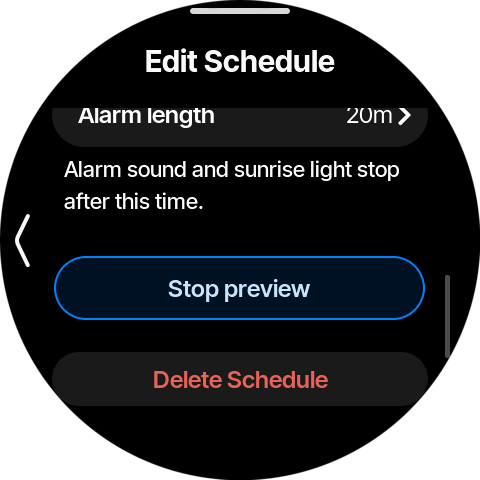
💡 Preview is only available when the alarm sound and/or sunrise light is enabled.
12. When the alarm goes off
At your wake‑up time the screen shows the current time and Rise and shine. The audible alarm plays (and the lamp is at full brightness if sunrise is enabled).
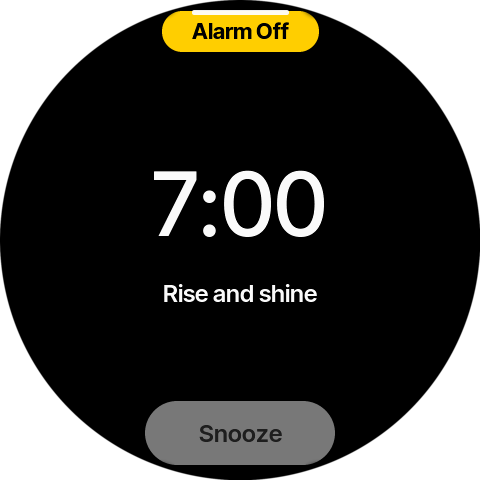
You have two choices:
- Snooze — tap the Snooze button. The alarm pauses and the screen shows a countdown (Snoozing for 9m 58s). The alarm returns when the countdown ends.
💡 The Snooze button only appears if snooze is enabled for the schedule (see Snooze above).
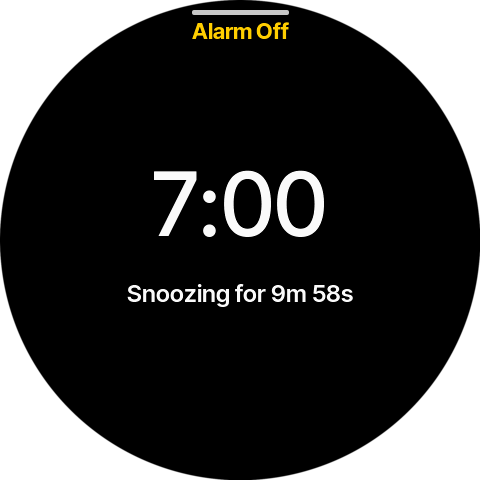
- Turn the alarm off — drag the Alarm Off handle at the top of the screen downward. The wake‑up flow ends and a Good morning confirmation appears.

13. Quick reference
| Task | Where |
|---|---|
| See next alarm / change just tomorrow | Home → Next Wake Up bell widget |
| One‑time wake‑up override | Next Wake Up → Change next wake up (gear → Next Only for full options) |
| Cancel a one‑time override | Next Only editor → Revert to schedule |
| Skip / restore just the next alarm | Next Wake Up → Skip next wake up / Unskip next wake up |
| Manage all alarms | Next Wake Up → Edit alarms & schedules (or Menu → Sleep → Alarms & Schedules) |
| Add an alarm | Schedules → Add alarm schedule |
| Turn an alarm on/off | Toggle on the schedule row |
| Set repeat days | Edit Schedule → day circles (Mo–Su) |
| Set wake‑up time | Edit Schedule → Wake up → spin wheels → Set |
| Choose alarm sound | Edit Schedule → Sound |
| Gentle light wake‑up | Edit Schedule → Sunrise Light (+ Style, Start Before Alarm) |
| Enable snooze | Edit Schedule → Snooze toggle |
| Limit how long it rings | Edit Schedule → Alarm length |
| Test it | Edit Schedule → Preview alarm |
| Delete an alarm | Edit Schedule → Delete Schedule |
| Snooze in the morning | Snooze button on the alarm screen |
| Turn off in the morning | Drag the Alarm Off handle down |