Sleep Routine
Dreamie's sleep routine is a nightly flow that helps you fall asleep and stay asleep. It moves through a sequence of customizable steps, each playing its own content (a sound, a soundscape, or a podcast) and setting the lamp.
Bedtime Cue sets the ambience to get ready for bed — it starts on its own before your bedtime and keeps playing until you move on. Once you get into bed, a simple downward swipe kicks off Wind Down, the content you fall asleep to; when its sleep timer ends, Dreamie hands off automatically to Noise Mask, a steady sound that masks disruptions until your scheduled wake-up.
This guide explains what the steps are, how to configure them (from the main menu or the scene selector), and how to start and stop the routine.
Contents
- The steps
- Configuring the routine from the menu
- Configuring a step from the scene selector
- Starting and stopping from the scene selector
- Moving through the steps by swiping
- Quick reference
1. The steps
The routine runs the following steps, in order. You can customize each one, or turn any of them off (see section 2).
| Step | What it does |
|---|---|
| ✨ Bedtime Cue | Sets ambience as bedtime nears. Starts automatically before your set bedtime. |
| 🛏️ Wind Down | Plays content while you fall asleep. Runs for a set time, then goes to Noise Mask if enabled, or stops. |
| 💤 Noise Mask | Steady sound that masks disruptions until your alarm. |
| 🔁 Back to Sleep | If you wake at night, plays content to help you fall back asleep. After it ends, returns to Noise Mask if on. |
You can read this same explanation on the device at any time: open Menu → Sleep → Sleep Routine and tap the blue Learn more link under the title.
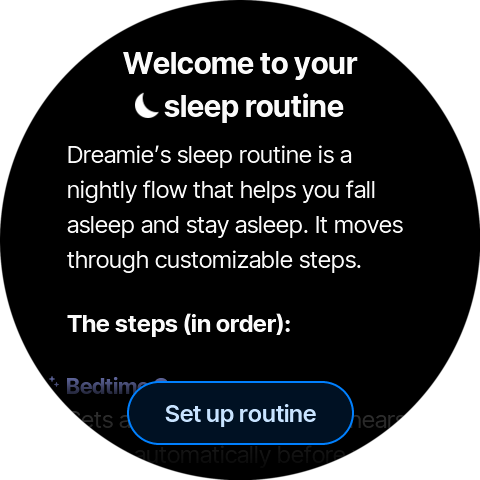
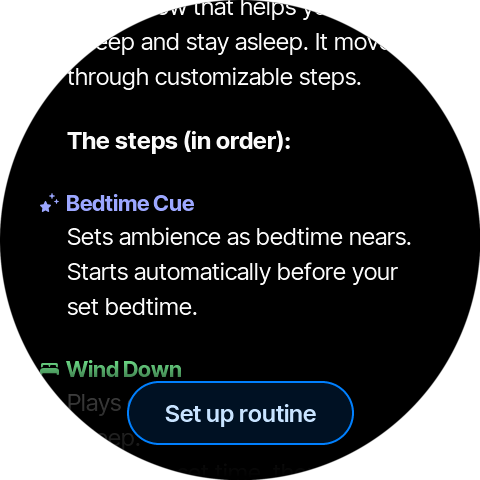
💡 Bedtime Cue starting, and the Wind Down → Noise Mask hand-off, happen automatically; starting Wind Down is the one transition you make yourself — a downward swipe once you're in bed. You can also move between steps by hand at any time — see section 5.
2. Configuring the routine from the menu
Open the main menu (swipe up from the bottom edge), then under Sleep tap Sleep Routine.
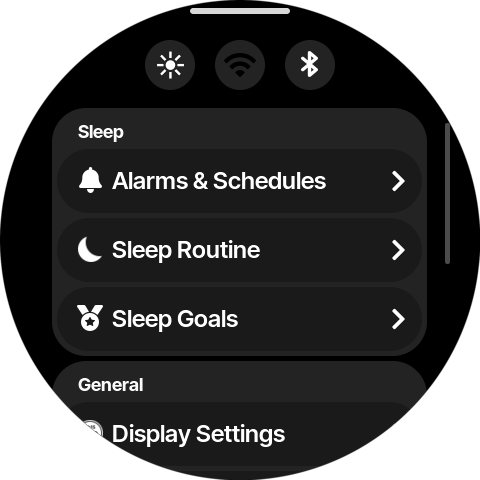
This opens the Sleep Routine page, which lists every step with its current content beneath the name. A step that is turned off shows Off (Noise Mask shows Silence instead). Each row has a ⋯ (more) button on the right.
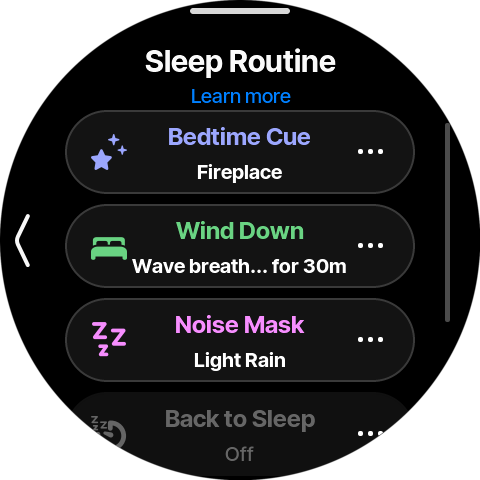
Tap a step (or its ⋯ button) to open its settings:
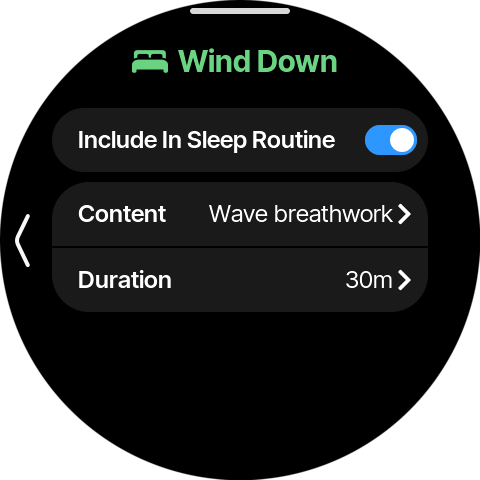
- Include In Sleep Routine — the master toggle for this step. Turn it off to skip the step entirely.
- Content — the sound or soundscape the step plays.
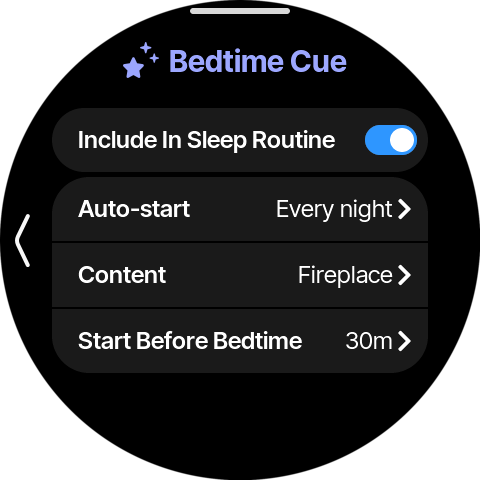
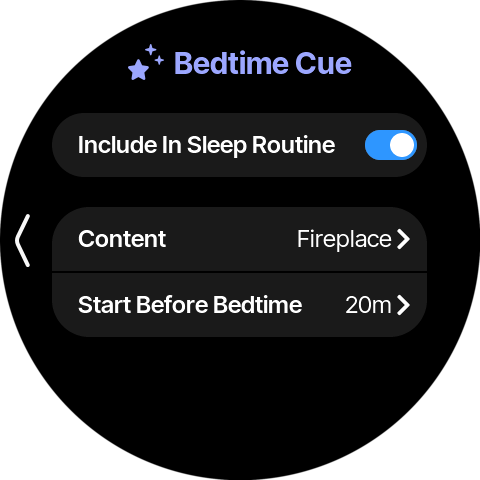
- Duration — how long the step runs. For Bedtime Cue this row is labeled Start Before Bedtime instead — how far ahead of your bedtime it begins.
Bedtime Cue has one extra setting:
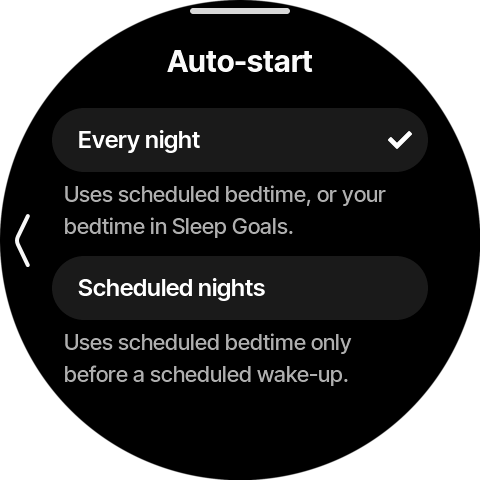
- Auto-start — when the cue starts. Tap it to choose between Every night and Scheduled nights.
Scheduled nights starts the cue only on the nights before a scheduled wake-up. Every night also starts it on nights that none of your schedules covers, using the bedtime from your sleep goal (Menu → Sleep → Sleep Goals); on those nights there is no wake-up to end the routine, so it keeps playing until you stop it yourself (see section 4).
Choosing content
Tap Content to open the content picker. At the top are a volume slider, a brightness slider, and a Start Preview button so you can hear and see the step before committing; below is the list of built‑in sounds.
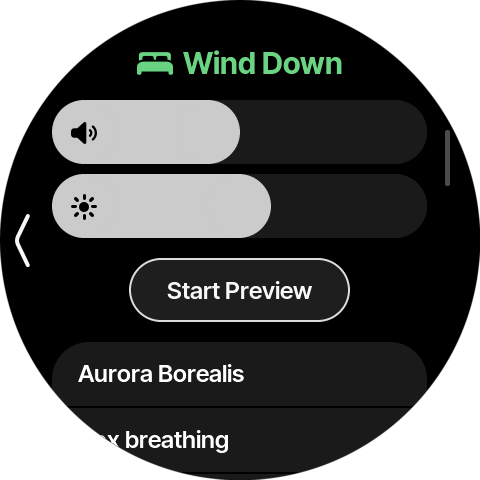
💡 To use a podcast for a step instead of a built‑in sound, scroll to the bottom of the list and tap Podcast. See Podcasts → Setting a podcast as scene content.
3. Configuring a step from the scene selector
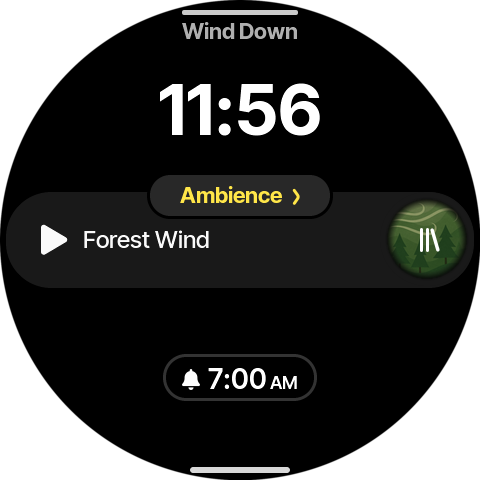
You can reach the same per‑step settings without going through the menu. On the home screen, tap the scene name at the top of the player to open the scene selector.
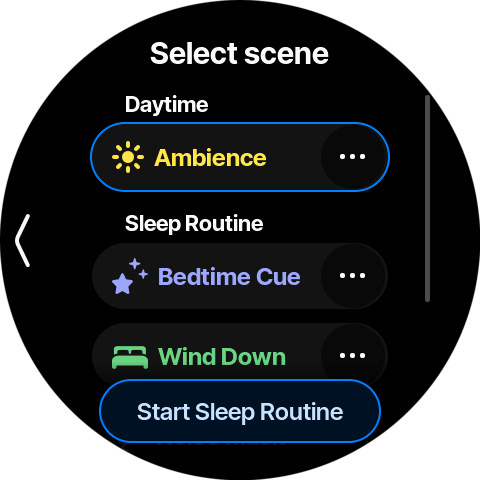
The selector lists your Daytime scene (Ambience) and, under Sleep Routine, each step of the routine. Tap the ⋯ button on any step to open its settings modal.
The modal offers the same options as the menu — Include In Sleep Routine, Content, and the step's duration (Start Before Bedtime for Bedtime Cue, which also has its Auto-start row here).
4. Starting and stopping from the scene selector
The scene selector is also where you start and stop the routine by hand.
To start, open the selector and tap the Start Sleep Routine button at the bottom. The routine begins at its first step, and the home screen switches to that step's content. The top edge shows the next step, and the player shows the current one.
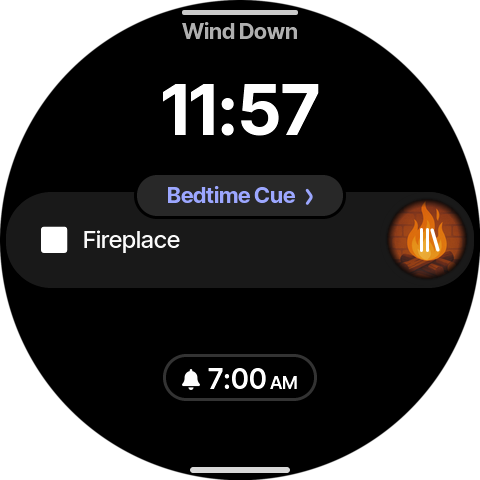
While the routine is running, opening the selector shows a Stop Sleep Routine button in its place, and the step that is currently playing is highlighted.
To stop, tap Stop Sleep Routine. Dreamie ends the routine and returns to your Ambience (daytime) scene.
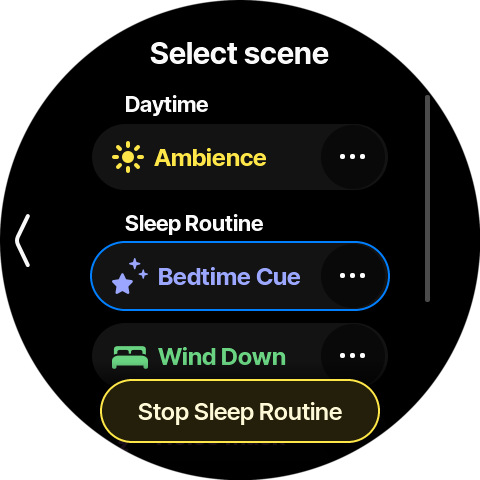
💡 You can also jump straight to a particular step by tapping its row in the selector — the step highlights and starts playing. (A step you've turned off generally can't be selected this way; turn it back on first in its settings.)
5. Moving through the steps by swiping
You don't need the scene selector to move between steps — once you're in bed you can drive the whole routine with two swipes, without looking for a button.
The home screen shows two scene names:
- the next step in dimmed text along the top edge, and
- the current step as the colored pill in the middle of the player.
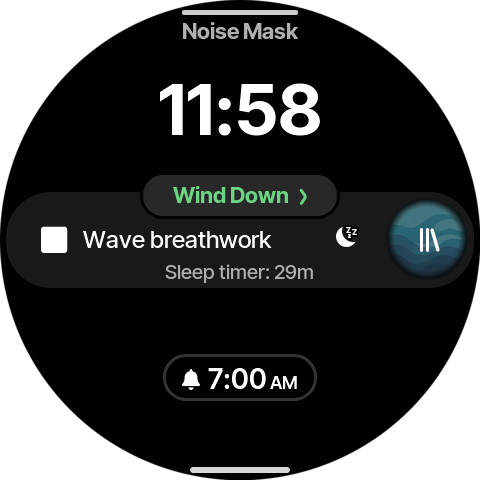
In this example Wind Down is playing now (middle) and Noise Mask is up next (top).
Forward — to the next step
Drag the next step's name down from the top edge. Dreamie advances to that step. Done from the home screen (before the routine has started), this same gesture begins the routine.
Backward — to the previous step
Swipe the current step's name up from the middle of the player. Dreamie steps back to the previous step. Swiping back from the first step ends the routine and returns you to your Ambience (daytime) scene.
💡 Tapping the current step's name (instead of swiping it up) opens the scene selector rather than stepping back.
6. Quick reference
| Task | Where |
|---|---|
| Read what the routine does | Menu → Sleep → Sleep Routine → Learn more |
| Configure a step | Menu → Sleep → Sleep Routine → tap the step |
| Configure a step (shortcut) | Scene name → ⋯ on the step |
| Turn a step on/off | Step settings → Include In Sleep Routine |
| Change a step's sound | Step settings → Content |
| Set a step's length | Step settings → Duration (Bedtime Cue: Start Before Bedtime) |
| Choose when the cue starts | Bedtime Cue settings → Auto-start |
| Preview a step | Content picker → Start Preview |
| Use a podcast for a step | Content picker → Podcast |
| Start the routine | Scene name → Start Sleep Routine, or drag the next step down from the top edge |
| Jump to a specific step | Scene name → tap the step's row |
| Go to the next step | Drag the next step's name down from the top edge |
| Go to the previous step | Swipe the current step's name up from the middle |
| Stop the routine | Scene name → Stop Sleep Routine (or swipe back from the first step) |