Display Settings
Display Settings is where you shape how Dreamie's screen behaves: how bright it is, how it dims down at night, which clock face it shows, and what extra information appears on the home screen.
Contents
- Opening Display Settings
- Brightness
- Dark Mode
- Redshift
- Clock Face
- Hide Clock When Idle
- Room Temperature
- Quick reference
1. Opening Display Settings
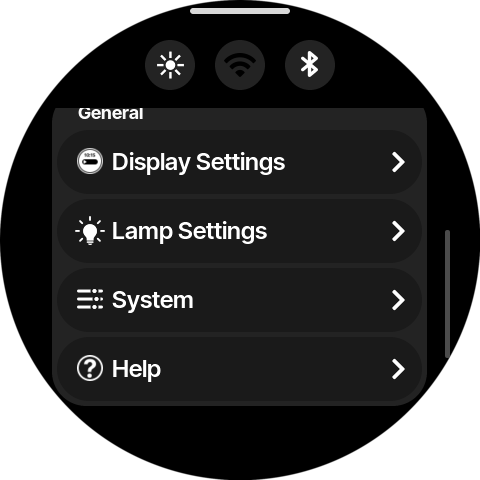
Swipe up from the bottom of the home screen to open the menu, scroll down to General, and tap Display Settings.
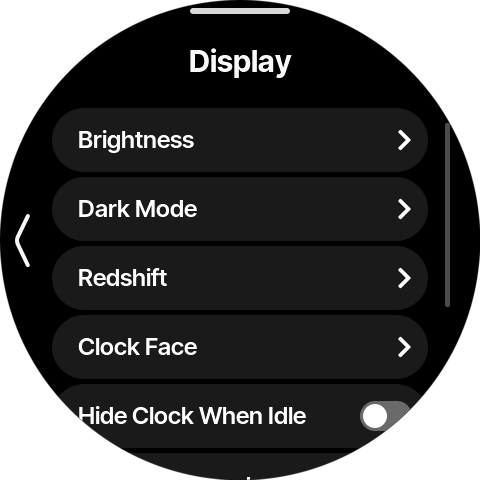
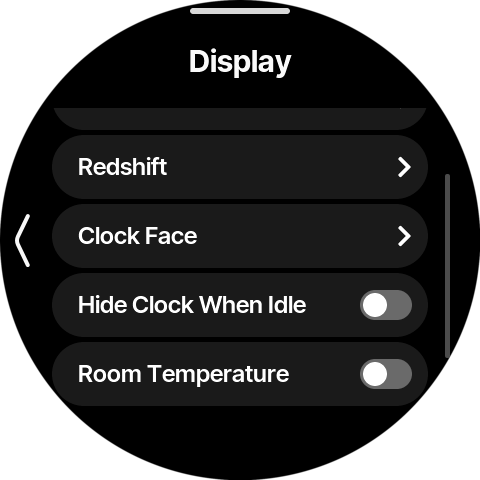
The Display screen lists everything covered on this page:
💡 The round sun button at the top of the menu is a shortcut — it jumps straight to the Brightness screen.
2. Brightness
Tap Brightness to adjust how bright the screen is.
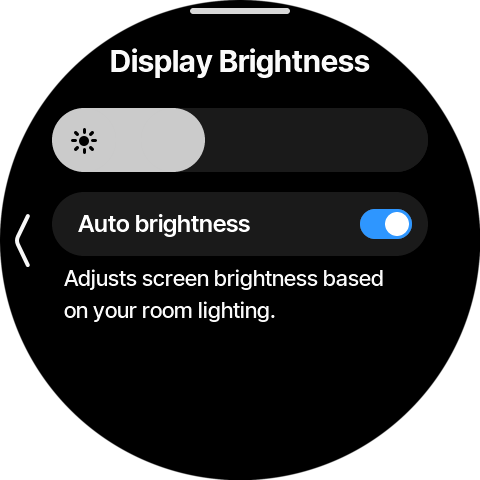
With Auto brightness on (the default), Dreamie continuously adjusts the screen to match your room lighting — brighter in daylight, gentle in a dark bedroom. The slider then acts as a preference: nudge it right if the automatic choice feels too dim for you, left if it feels too bright.
With Auto brightness off, the slider sets one fixed brightness level that stays put regardless of the room.
💡 We recommend leaving Auto brightness on — it keeps the screen readable by day without it glowing brightly at night.
3. Dark Mode
Tap Dark Mode to control how the screen behaves when your room gets dark.
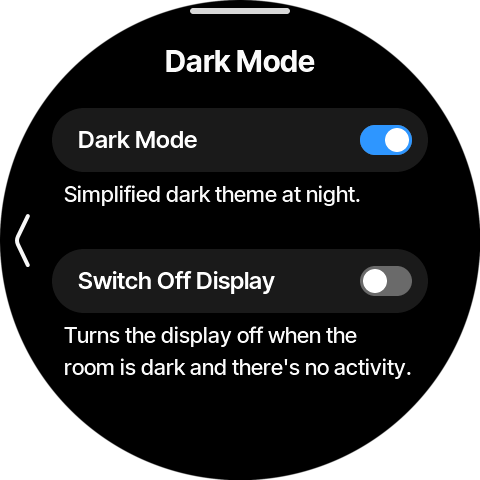
- Dark Mode (on by default) — when the lights go out, the screen switches to a simplified, very dim dark theme, so Dreamie doesn't light up your bedroom while you sleep. As soon as the room brightens again or you interact with Dreamie, the normal screen returns.
- Switch Off Display — goes one step further: when the room is dark and you're not interacting with Dreamie, the display turns off completely. Touch the screen and it comes right back. This option is only available while Dark Mode is on.
4. Redshift
Tap Redshift to enable warmer evening colors.
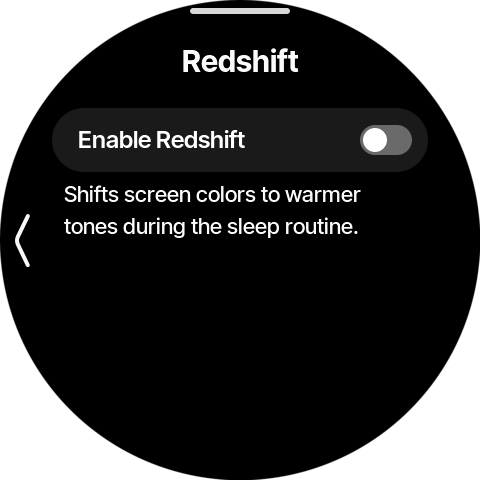
With Enable Redshift on, the screen shifts to warmer, redder tones while your sleep routine is running — easier on eyes that are winding down for the night. It's off by default.
5. Clock Face
Tap Clock Face to choose how the home screen shows the time:
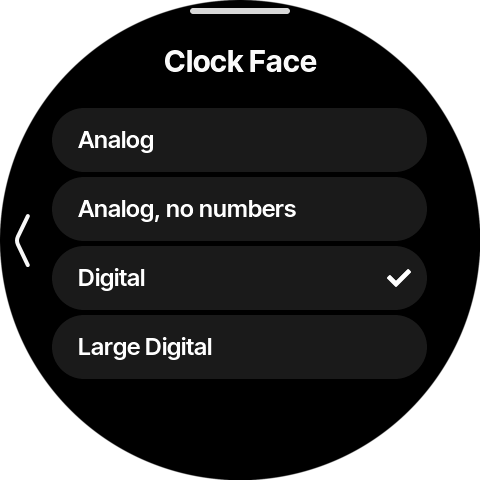
- Analog — a classic clock dial with numbers
- Analog, no numbers — the same dial, minimalist
- Digital — the time in digits
- Large Digital — digits filling the screen, easy to read from across the room
Tap an option to apply it immediately.
6. Hide Clock When Idle
With Hide Clock When Idle on, the clock disappears a few seconds after you stop interacting with Dreamie, leaving the screen calm and empty. Tap the screen or turn the volume ring and the clock reappears.
Prefer a bedside display that shows nothing at all unless you ask? Combine this with Switch Off Display in Dark Mode.
7. Room Temperature
With Room Temperature on, the current temperature in your bedroom appears on the home screen, below the next wake-up info.
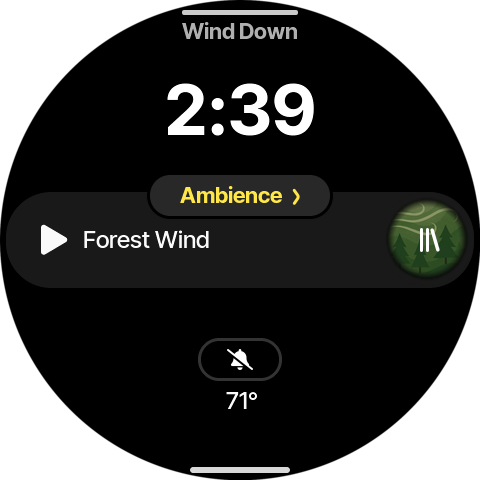
💡 Whether the temperature reads in °C or °F is set under System → Units.
8. Quick reference
| Task | Where |
|---|---|
| Open Display Settings | Menu → General → Display Settings |
| Adjust screen brightness (shortcut) | Menu → sun quick-access button |
| Automatic / fixed brightness | Brightness → Auto brightness switch |
| Dim the screen at night | Dark Mode → Dark Mode switch |
| Screen fully off at night | Dark Mode → Switch Off Display |
| Warmer colors during the sleep routine | Redshift → Enable Redshift |
| Change the clock style | Clock Face → pick a face |
| Blank screen when not in use | Display → Hide Clock When Idle |
| Show bedroom temperature | Display → Room Temperature |