Podcasts
Dreamie can play podcasts as part of your bedside routine. This guide covers finding the podcast library, searching for a show, following your favorites, playing episodes, digging through a show's back catalog, browsing the featured picks, and setting a podcast as the content for one of your scenes.
Podcasts stream over the internet, so your Dreamie needs to be connected to Wi‑Fi to search and play.
Contents
- Opening the library
- The Podcasts tab
- Searching for a podcast
- Following a show (favorites)
- Playing an episode
- Finding more episodes
- Setting a podcast as scene content
- Quick reference
1. Opening the library
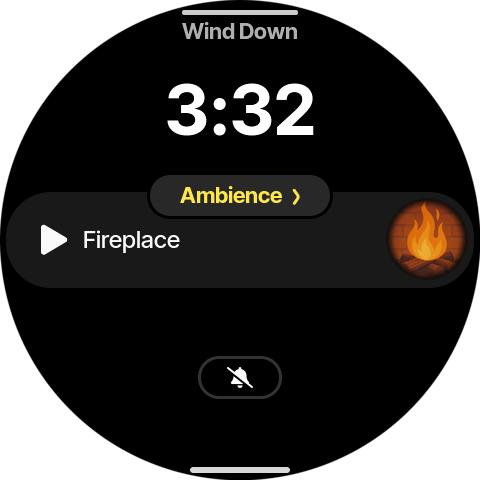
Everything you can play on Dreamie — ambient sounds, relaxation content and podcasts — lives in the library. On the home screen, tap the round album‑art icon in the top‑right corner of the player to open it.
The library opens on its Home tab. Along the top are a search button (magnifying glass), a home button, and the content tabs — Podcasts, Relaxation, and more. Below, the library is organized into rows you can scroll. Notice the In <scene> label at the top: the library always opens in the context of your current scene (here, Ambience), and anything you play becomes that scene's content.
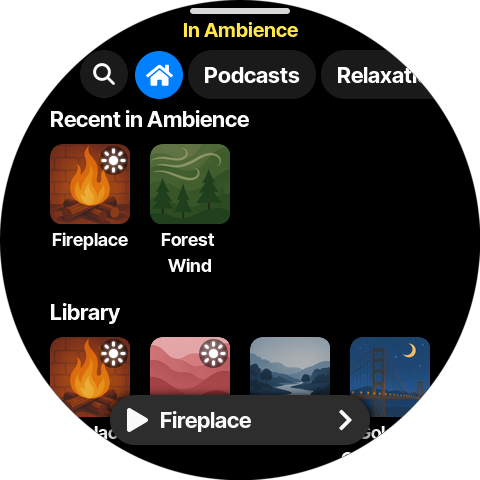
💡 A small mini‑player sits at the bottom of the library whenever something is playing. Tap it to jump back to the full player.
2. The Podcasts tab
Tap Podcasts in the tab bar to switch to podcasts. Depending on what you've listened to, this tab shows up to five horizontal rows you can swipe through:
- Continue where you left off — episodes you started but haven't finished.
- New Episodes — the newest episode from each show you follow.
- Followed Podcasts — shows you've followed (see Following a show).
- Featured Podcasts — a curated selection of sleep‑friendly shows.
- Recent Podcasts — shows you've opened recently.
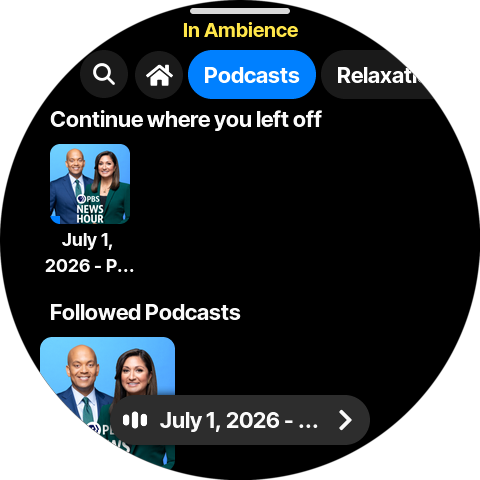
Scroll down to reach Featured Podcasts and Recent Podcasts. A Search podcasts button sits at the very bottom of the tab.
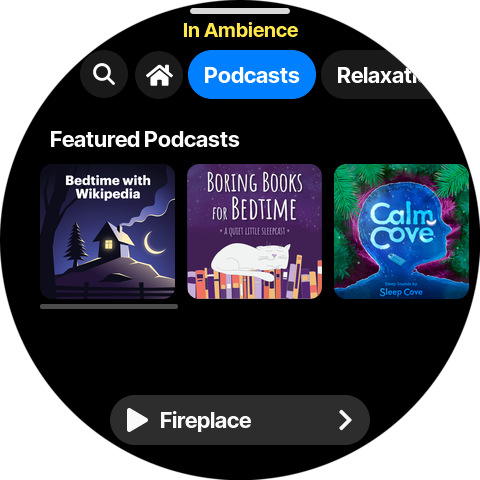
Tap any cover to open that show. Featured is the easiest way to discover something new without typing a search — see Playing an episode for what to do once a show is open.
3. Searching for a podcast
To find a specific show, tap the search button (magnifying glass) at the top‑left of the library. From the Podcasts tab you can also scroll past the last row and tap Search podcasts — both open the same search bar.
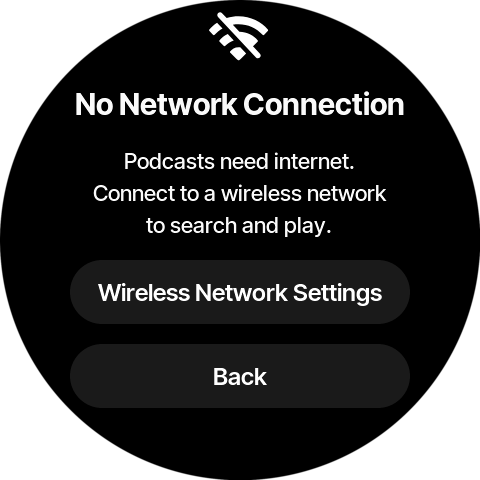
⚠️ Podcasts need an internet connection. If your Dreamie isn't on Wi‑Fi, a No Network Connection message appears instead — tap Wireless Network Settings to connect, then try again.
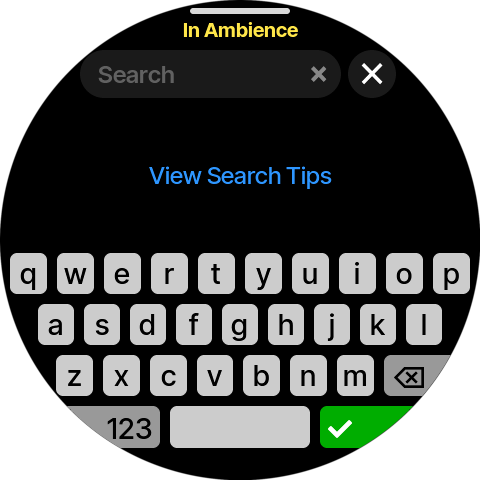
The search bar opens with the on‑screen keyboard. Before you type, a View Search Tips link offers guidance on getting good results.
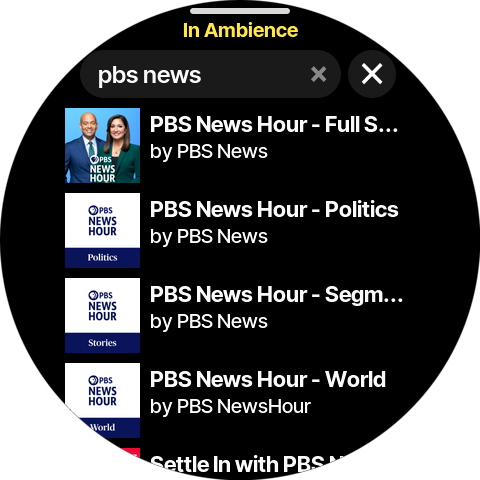
Start typing the name of a show — for example, PBS News. Results begin to appear after a few characters. Each result shows the show's cover art, its title, and the publisher underneath (by …).
Tap a result to open the show.
💡 Search finds podcast shows, not individual episodes. Once you open a show you can browse and search its episodes (see Finding more episodes). If nothing matches, tap View Search Tips — adding the publisher or network name often helps.
4. Following a show (favorites)
Opening a show brings you to its page: the cover art, title, publisher, a Latest button, a Follow show button, and the episode list.
To favorite a show, tap Follow show.
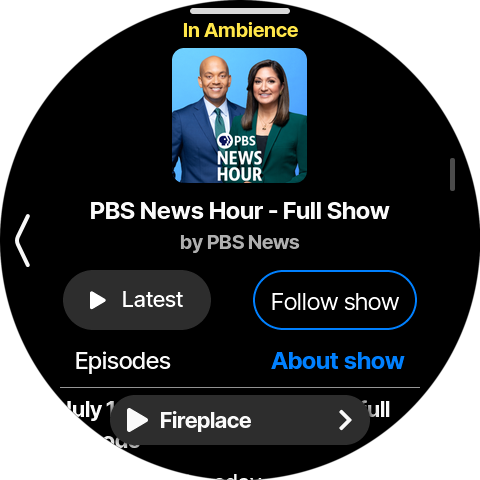
The button fills in and changes to Unfollow, confirming you're now following.
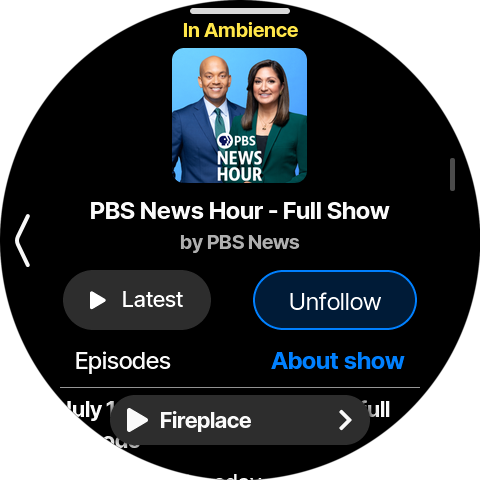
Followed shows collect in the Followed Podcasts row on the Podcasts tab, so your favorites are always one tap away. To stop following, open the show again and tap Unfollow.
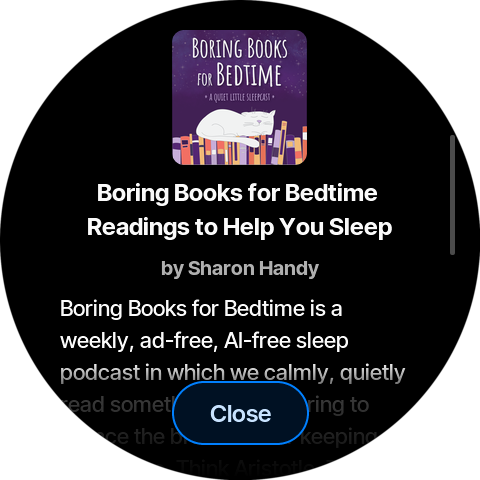
💡 Tap About show on the show page to read its full description.
5. Playing an episode
On the show page, the fastest way to start listening is the Latest button, which plays the most recent episode.
To choose a specific episode, scroll down to the Episodes list. Each row shows the episode title, a short description, its publish date and length, and a ▶ play button. A ring around an episode's thumbnail means you started it but didn't finish; a checkmark means you've listened to it.
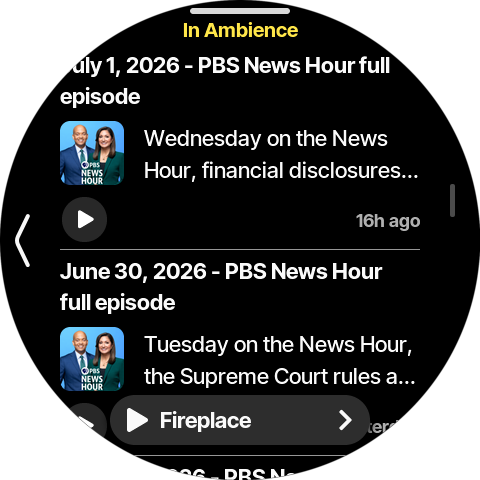
- Tap the ▶ play button on a row to start that episode straight away.
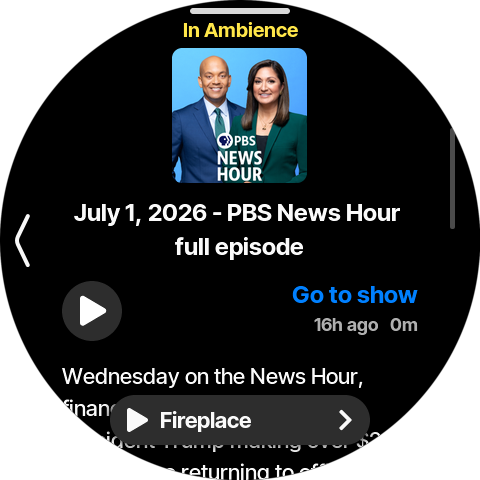
- Tap the rest of the row to open the episode page, which shows the full description, publish date and length, a large play button, and a Go to show link. If you've listened part‑way, the play button shows how much time is left.
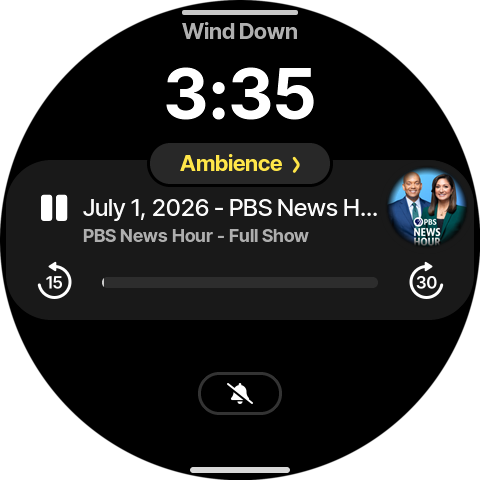
Once an episode is playing, it takes over the player. Swipe the library down to return to the full player, where you get the podcast transport controls: play/pause, skip back 15 seconds, skip forward 30 seconds, and a progress bar showing elapsed and remaining time.
6. Finding more episodes
The show page lists the most recent episodes. If a show has a deeper back catalog, a More episodes button appears at the bottom of the list.
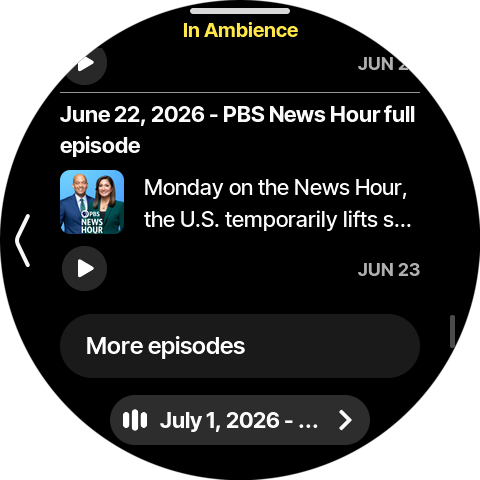
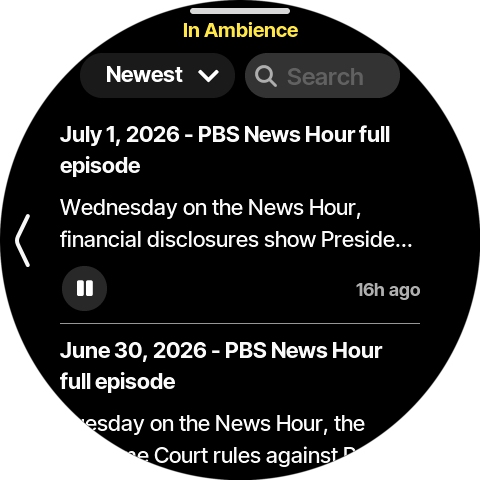
Tap it to open the full episode catalog. Two controls sit at the top:
- A sort button that toggles between Newest (▼) and Oldest (▲).
- A Search field for filtering within this show's episodes.
Type in the Search field to narrow the list to episodes whose title or description matches — here, filtering the news show to episodes mentioning court. Tap the ✕ to clear the filter.
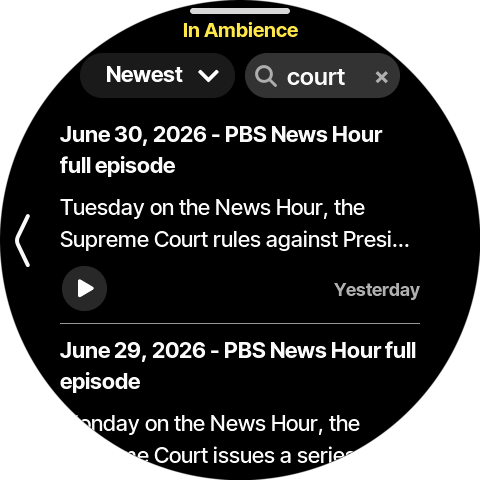
💡 This search filters the episodes already loaded for the show — it doesn't search the whole podcast catalog. Use the library search (section 3) to find a different show.
As on the show page, tap the ▶ play button to play an episode, or tap the row to open the episode page.
7. Setting a podcast as scene content
Each scene in your routine (such as Wind Down) plays a piece of content. You can set that content to a podcast show or a specific episode.
Open the scene selector by tapping the scene name at the top of the player, then tap the ⋯ (more) button on the scene you want to change.
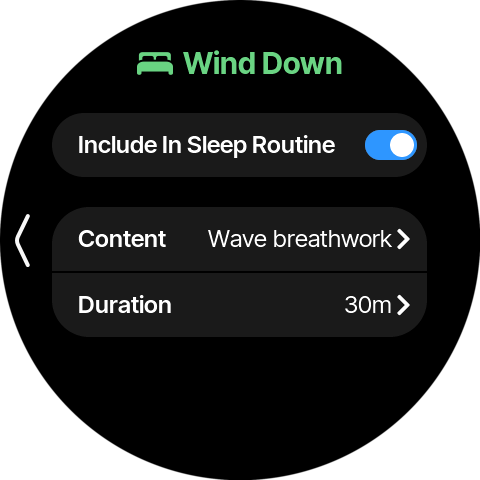
The scene's settings open. Tap Content.
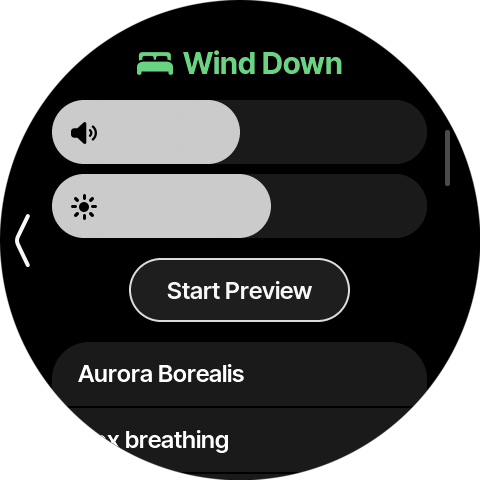
The content picker opens with volume and brightness sliders and a Start Preview button at the top, above the list of built‑in scene sounds.
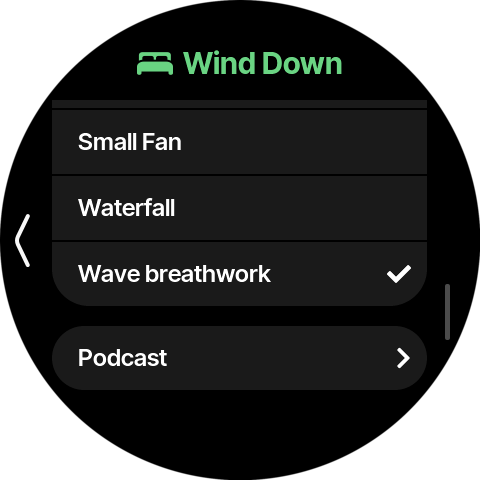
To use a podcast instead, scroll to the bottom of the list and tap Podcast.
Podcast opens the library on the Podcasts tab. The In <scene> header shows you're choosing content for that scene. Find a show the same way you normally would — via Featured, Followed Podcasts, or search.
Open a show and you'll see the picker's version of its controls:
- Set show — use this show as the scene's content. Dreamie will always play its latest episode, so the scene stays fresh over time.
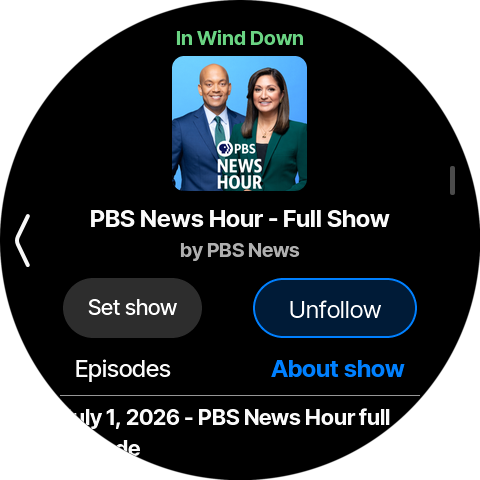
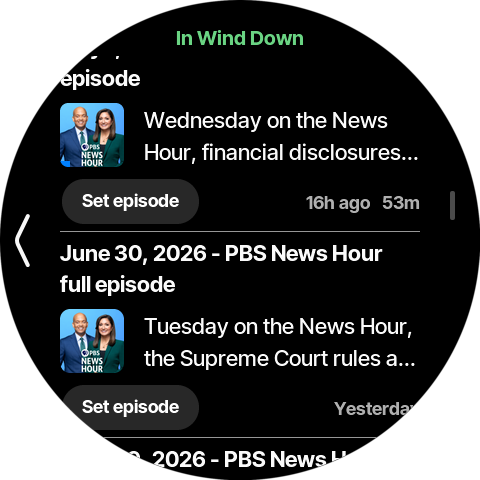
- Set episode — on any episode row, pins that exact episode to the scene.
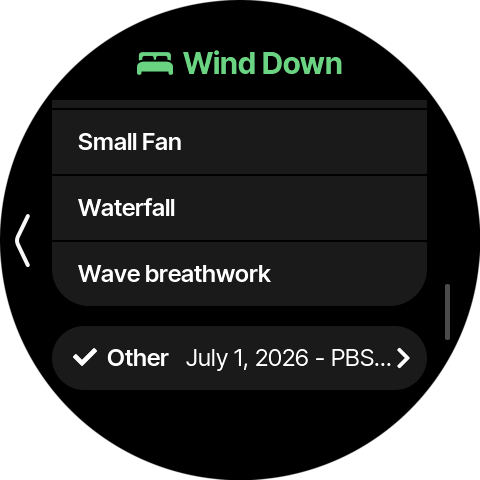
Making a choice returns you to the content picker, where Podcast now shows a checkmark and the podcast you picked.
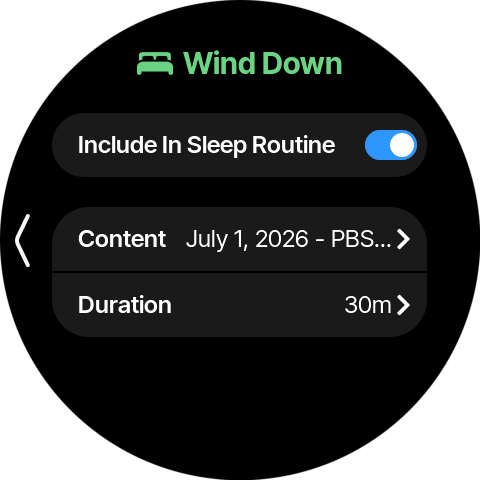
Close the picker and the scene's Content row reflects your podcast. From now on, that scene plays the show (or episode) you chose.
8. Quick reference
| Task | Where |
|---|---|
| Open the library | Home → album‑art icon (top‑right of player) |
| Go to podcasts | Library → Podcasts tab |
| Browse curated shows | Podcasts tab → Featured Podcasts row |
| Search for a show | Library → search (magnifying glass) → type a name |
| Read a show's description | Show page → About show |
| Follow / unfollow a show | Show page → Follow show / Unfollow |
| Find your favorites | Podcasts tab → Followed Podcasts row |
| Play the newest episode | Show page → Latest |
| Play a specific episode | Show page → episode's ▶ (or tap the row → play) |
| Resume an unfinished episode | Podcasts tab → Continue where you left off |
| Skip within an episode | Full player → ⟲ 15 / 30 ⟳ |
| Open the full episode catalog | Show page → More episodes |
| Sort episodes | Episode catalog → Newest / Oldest toggle |
| Search within a show | Episode catalog → Search field |
| Set a scene to a podcast | Scene selector → ⋯ → Content → Podcast → Set show / Set episode |